Part H — Profiles, users, and backup schedules
H.1 Resource profiles — /profiles
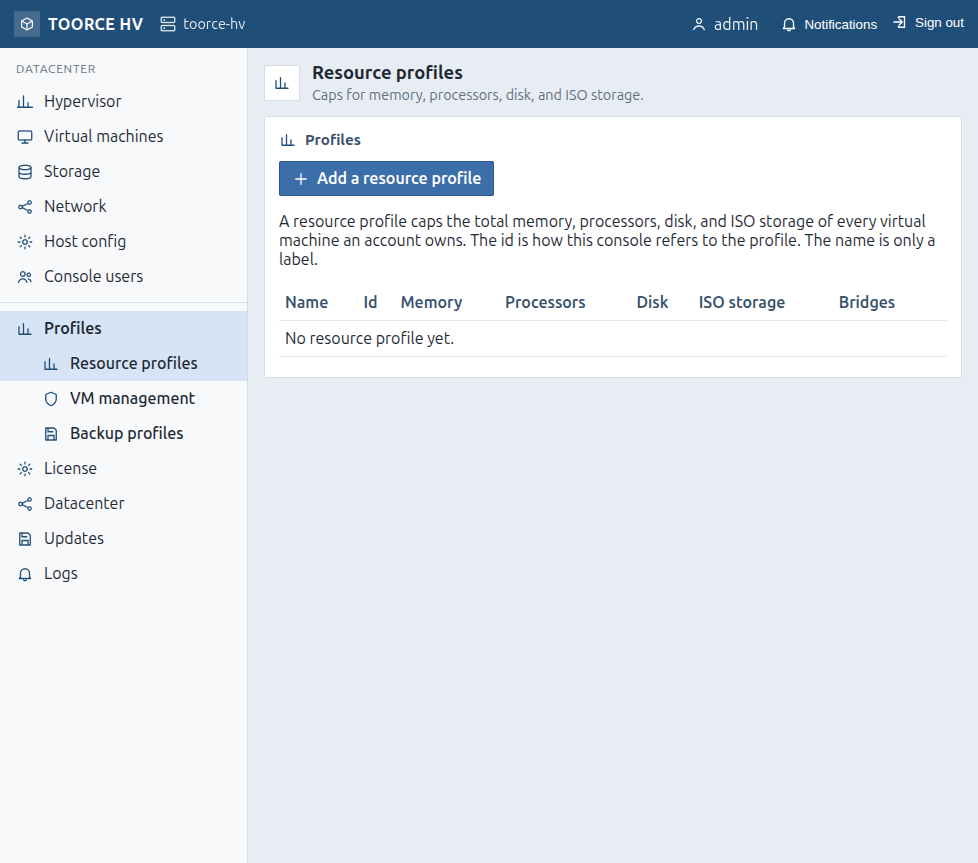
Lead: Caps for memory, processors, disk, and ISO storage.
A profile caps the total of every VM an account owns. The id is internal; the name is a label.
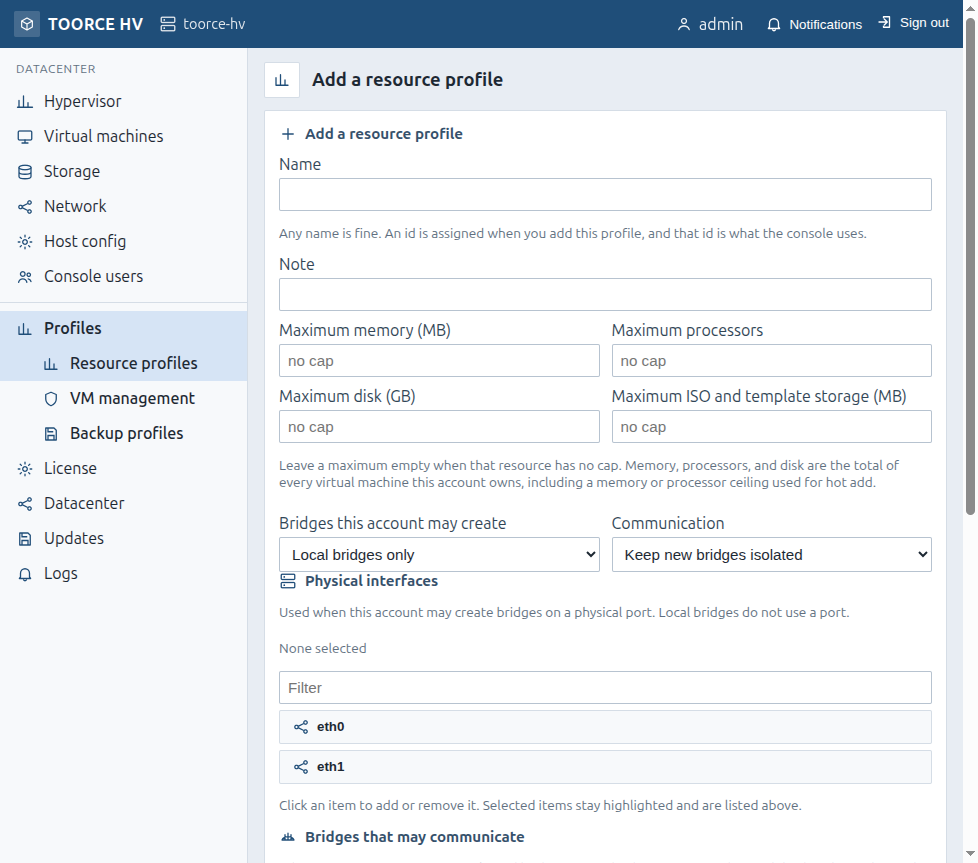
| Field | Meaning |
|---|---|
| Name | Label (id assigned on create) |
| Note | Comment |
| Maximum memory | Cap (MB); empty = no cap |
| Maximum processors | Cap; empty = no cap |
| Maximum disk | Cap (GB); empty = no cap |
| Maximum ISO storage | Cap (MB); empty = no cap |
| Bridges this account may create | Local / assigned interfaces scope |
| Communication | Isolated or selected bridges |
| Physical interfaces | Multi-select |
| Bridges that may communicate | Multi-select |
| ISO images / Templates | Which media from the main datastore are allowed |
| Button | Meaning |
|---|---|
| Add a resource profile | /profiles/new |
| Save / Remove | Edit or delete (users must not still be assigned) |
H.2 VM management profiles — /roles
Grants console pages and VM actions beyond “create within resource caps.”
Global permissions (labels): View hypervisor status · Upload/remove ISO · Create/edit/remove networks · Change host address/gateway/DNS · Add/edit/remove console users · Create VMs · View/Edit/Start/Shut down/Console/Delete every VM.
Per-VM permissions: View · Edit · Start · Shut down · Console · Delete.
H.3 Console users — /users
| Field | Meaning |
|---|---|
| User | Login name (lowercase pattern enforced by UI) |
| Password | Set / change |
| Note | Comment |
| Resource profile | Caps + ability to create VMs within caps |
| VM management | Extra pages/actions; can be empty if resource profile is enough |
| Button | Meaning |
|---|---|
| Add / Save | Create or update |
| Remove | Deletes the account (cannot be undone) |
H.4 Backup profiles — /backups
Scheduled backups using the host clock.
| Field | Meaning |
|---|---|
| Name | Profile label |
| Target datastore / folder | Destination |
| Overwrite · Maximum copies | Same ideas as manual backup |
| Days | Mon–Sun |
| Hours | 00:00–23:00 slots |
| Save profile | Persist |
Assign a profile from the VM Backup page.