Inline Rules
Navigation: Rules & Policies → Inline Rules
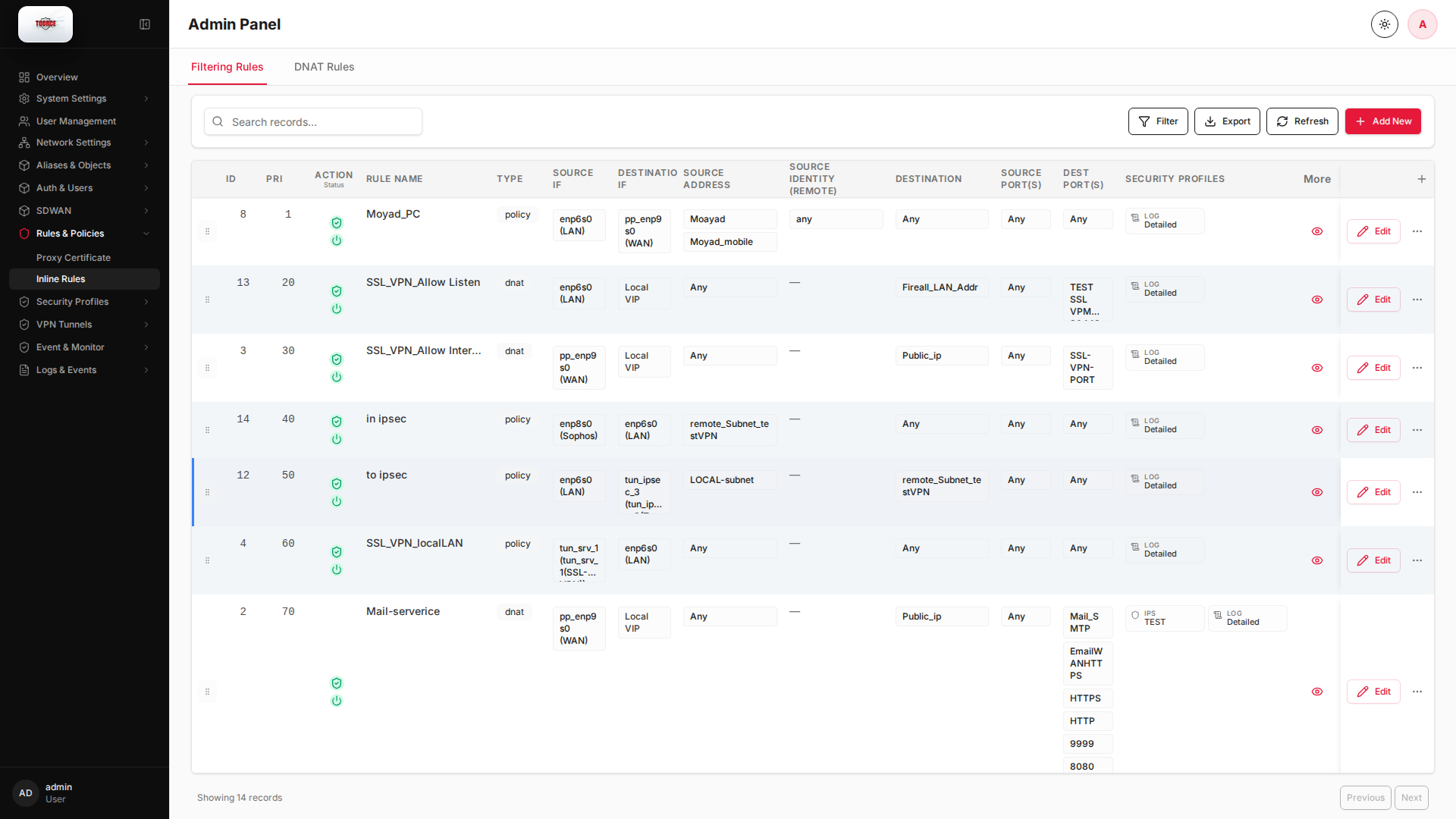
Inline rules are the core firewall policies. They control which traffic is allowed or denied, which security profiles are applied, and how NAT behaves. Rules are evaluated top to bottom — place more specific rules above general ones.
Add / Edit forms
Click + Add New to open the creation dialog, or Edit on an existing row to modify a record.
List view
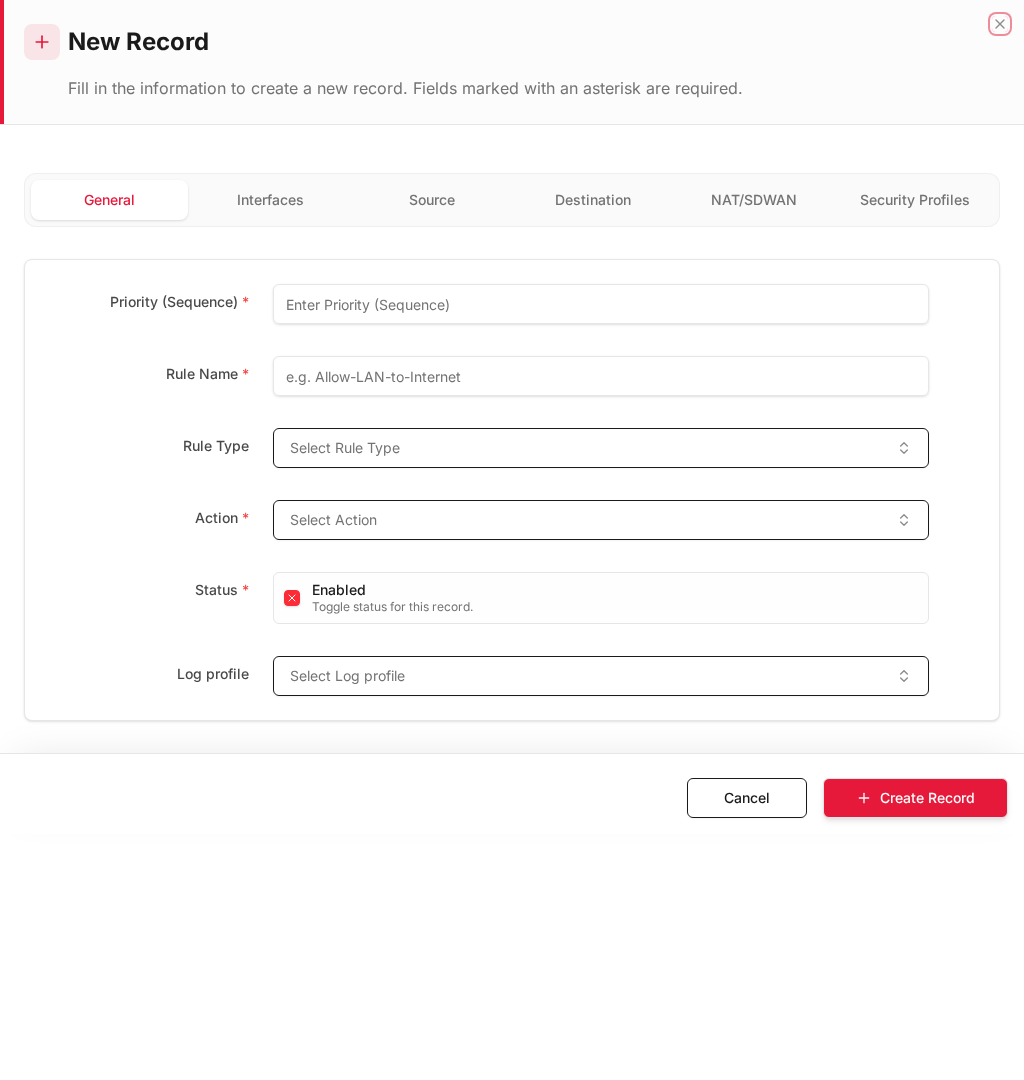
Add form
Empty form after clicking + Add New:
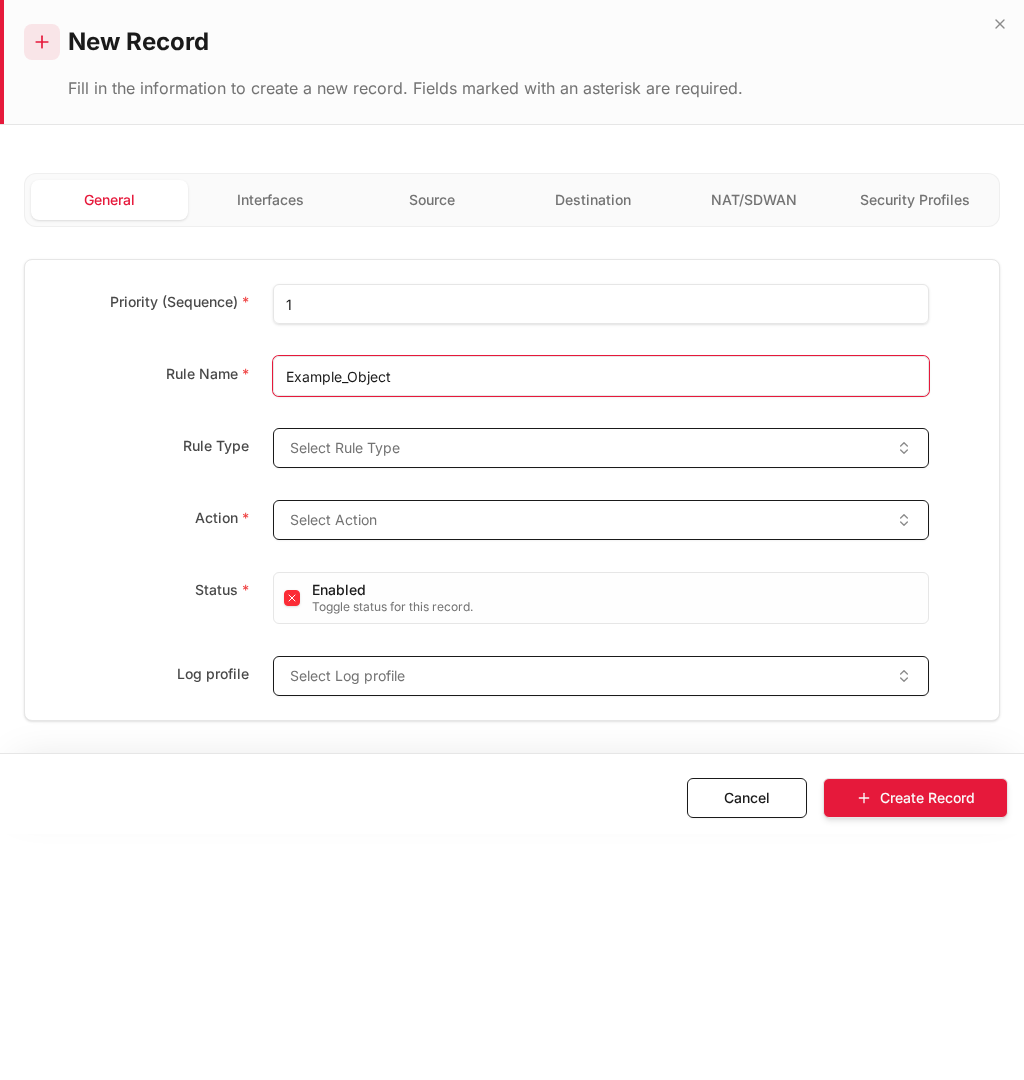
Same form filled with example data (do not save in production):
Edit form
Existing record opened with Edit:
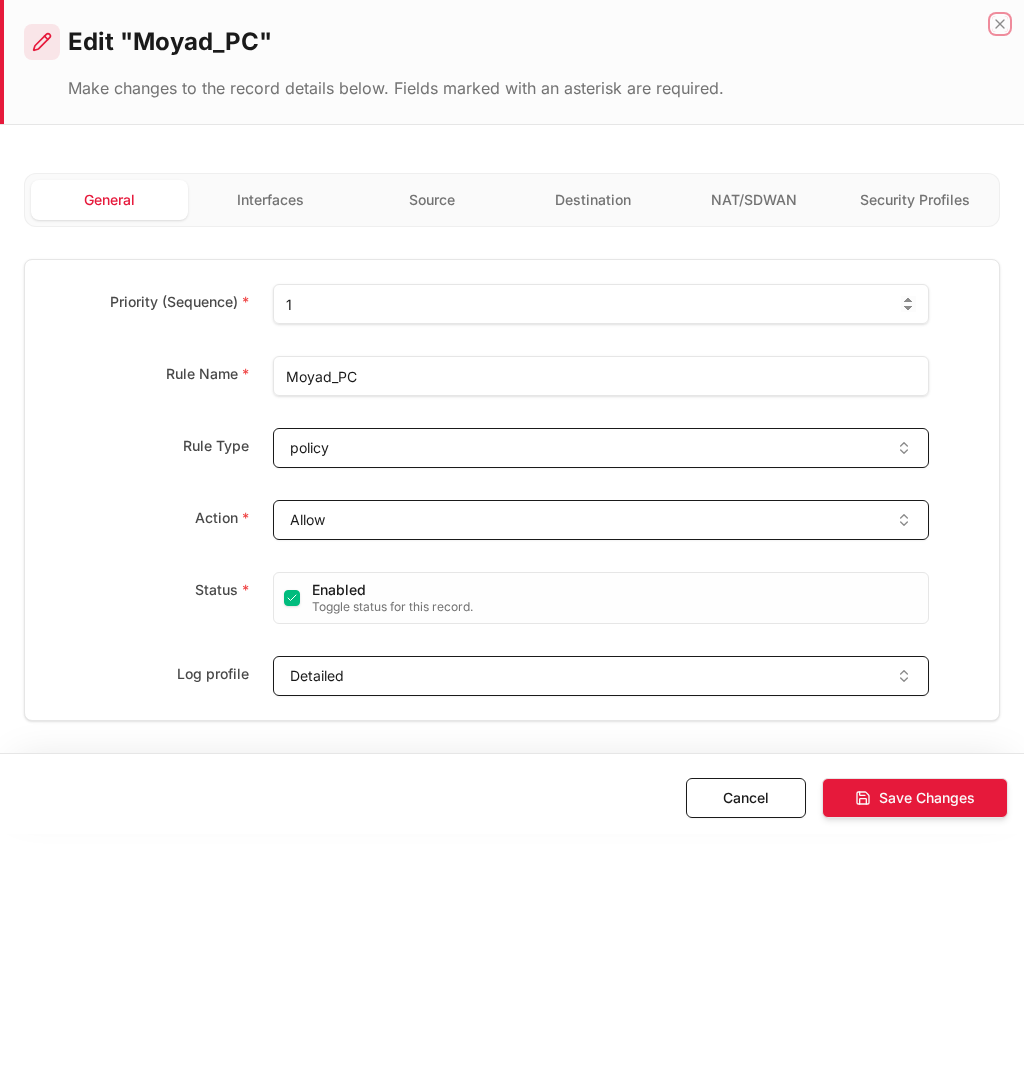
Form fields explained
Dialog title: New Record — Inline Rule
Tabs: General · Interfaces · Source · Destination · NAT/SDWAN · Security Profiles
| Field | Required | Description | Example value |
|---|---|---|---|
| Priority (Sequence) | Yes | Rule order — lower number = evaluated first | 1 |
| Rule Name | Yes | Policy name shown in firewall logs | Allow_All_Internet |
| Rule Type | No | Firewall, NAT, or other rule type | Firewall |
| Action | Yes | Allow or Deny matched traffic | Allow |
| Status | Yes | Enable or disable this rule | Enabled |
| Log profile | No | Logging verbosity for matched traffic | Default |
Technical background
Stateful firewall inspection
TOORCE inline rules implement stateful packet inspection (SPI). When a connection is allowed outbound, the return traffic is automatically permitted without a separate inbound rule. Denied traffic is dropped and may be logged as Implicit Deny.
Rule evaluation
Rules are processed top-down, first-match. This is the same model used by iptables/nftables, FortiGate, and Sophos. Best practice:
- Specific deny rules (block known threats)
- Specific allow rules (business applications)
- General allow (internet access)
- Implicit deny (everything else blocked)
Security profiles in rules
Modern NGFW rules attach deep inspection profiles:
| Profile | OSI Layer | Function |
|---|---|---|
| IPS | Layer 3–7 | Signature-based threat detection (Snort) |
| Antivirus | Layer 7 | File/content scanning |
| Web filter | Layer 7 | URL categorization and blocking |
| App control | Layer 7 | Application identification (DPI) |
| GeoIP | Layer 3 | Country-based filtering |
NAT and DNAT
Rules can include DNAT (Destination NAT / port forwarding) to publish internal services (e.g. mail server on WAN IP port 25 → internal 192.168.100.20).
Prerequisites
Before creating inline rules, configure these objects first:
- Address Objects — source/destination IPs
- Port Objects — services
- Interfaces — source/destination interfaces
- Security Profiles — AV, Web, IPS, Time (optional)
Table columns
| Column | Description |
|---|---|
| ID | Rule priority order |
| Rule Name | Policy name (shown in logs as POLICY_NAME) |
| Enabled | Active / inactive |
| Rule Type | Firewall, NAT, etc. |
| Source Interface | Incoming interface(s) |
| Destination Interface | Outgoing interface(s) |
| Action | Allow, Deny, etc. |
How to create an inline rule
- Go to Rules & Policies → Inline Rules.
- Click Add New.
- Fill in each section:
Basic settings
| Field | Required | What to enter |
|---|---|---|
| Rule Name | Yes | Descriptive name, e.g. Allow_All_Internet |
| Description | No | Purpose of this rule |
| Enabled | Yes | ✓ to activate immediately |
| Rule Type | Yes | Select rule type |
| Action | Yes | Allow or Deny |
Source
| Field | Object reference | Example |
|---|---|---|
| Source Interface | Interfaces | LAN (enp6s0) |
| Source Address Objects | Address Objects | LAN_Network |
| Source Service/Port Objects | Port Objects | Any or HTTPS |
| Source Users | Local Users/Groups | Optional user filter |
| Source GeoIP profile | GeoIP Profiles | Block/allow by country |
Destination
| Field | Object reference | Example |
|---|---|---|
| Destination Interface | Interfaces | WAN (enp9s0) |
| Destination Address Objects | Address Objects | Any |
| Destination Service/Port Objects | Port Objects | HTTPS |
| Destination GeoIP profile | GeoIP Profiles | Optional |
Security & scheduling
| Field | Object reference | Description |
|---|---|---|
| Time Profile | Time Profiles | When rule is active |
| IPS Profile | IPS Security | Intrusion prevention |
| Antivirus Profile | Antivirus Security | File scanning |
| Application Control | Applications Security | App filtering |
| SDWAN Profile | Multi-WAN | WAN link selection |
| Log profile | — | Logging verbosity |
- Click Save.
- Click Install Policy if prompted to apply changes to the running firewall.
Example: Allow LAN to Internet
| Field | Value |
|---|---|
| Rule Name | Allow All Internet |
| Source Interface | enp6s0 (LAN) |
| Destination Interface | enp9s0 (WAN) |
| Source Address | LAN_Network or Any |
| Action | Allow |
| IPS Profile | TEST (or your profile) |
Example: Allow specific PC to mail server
| Field | Value |
|---|---|
| Rule Name | Moyad_PC |
| Source Address | 192.168.100.135 (host object) |
| Destination Address | Mail_Server |
| Destination Port | SMTP, HTTPS |
| Action | Allow |
Rule evaluation order
Rules are processed top to bottom. The first matching rule wins.
- Place specific rules (single host, single service) at the top
- Place general allow rules in the middle
- Implicit deny catches everything not matched (logged as
Implicit Denyin Firewall Logs)
Where rule names appear
| Location | Column |
|---|---|
| Firewall Logs | POLICY_NAME |
| IPS Logs | FIREWALL RULE |
| Dashboard → Traffic Analysis | POLICY |