Static Routes
Navigation: Network Settings → Static Routs
Add static routes to direct traffic to specific networks through a gateway or interface.
Add / Edit forms
Click + Add New to open the creation dialog, or Edit on an existing row to modify a record.
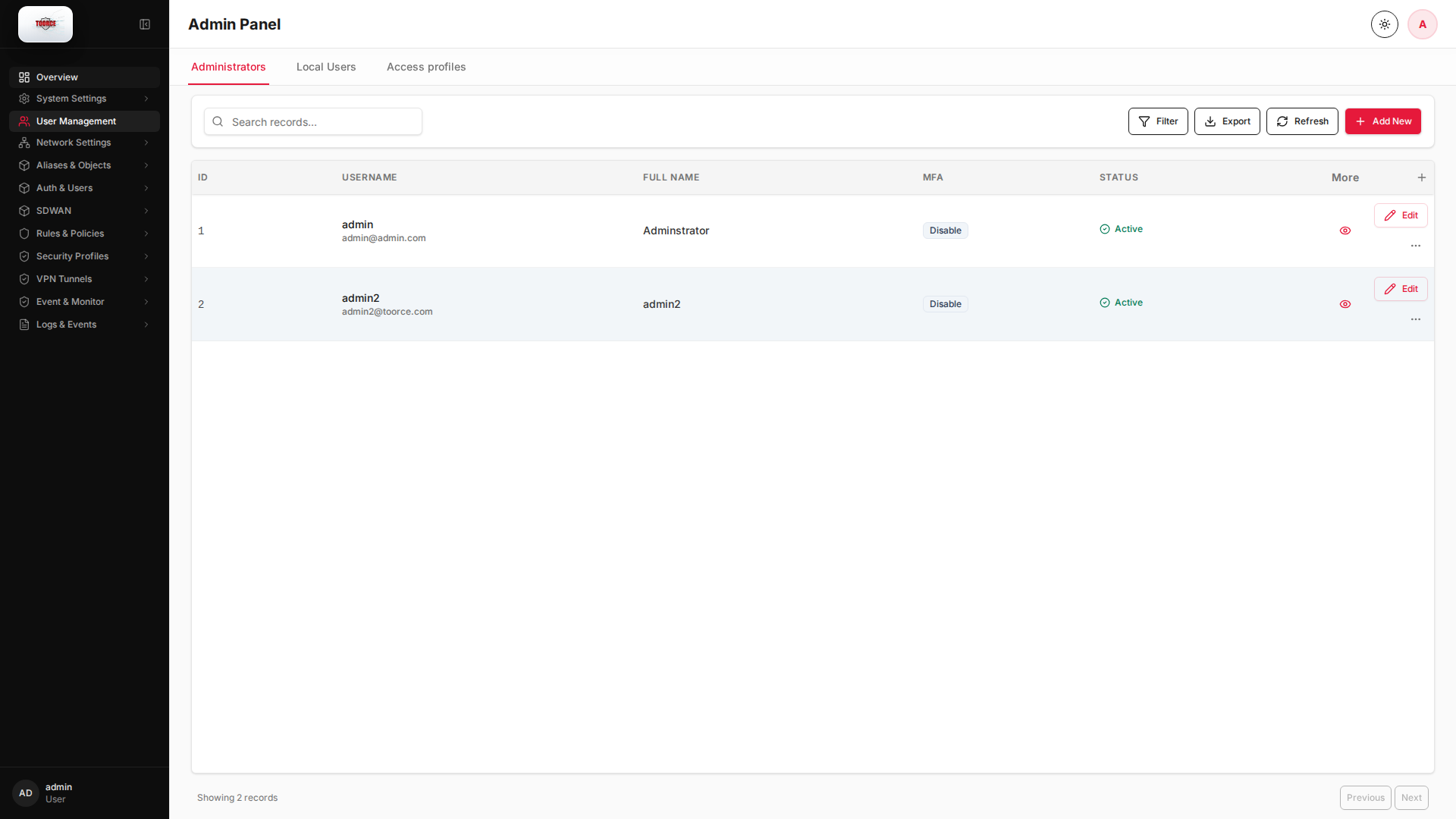
List view
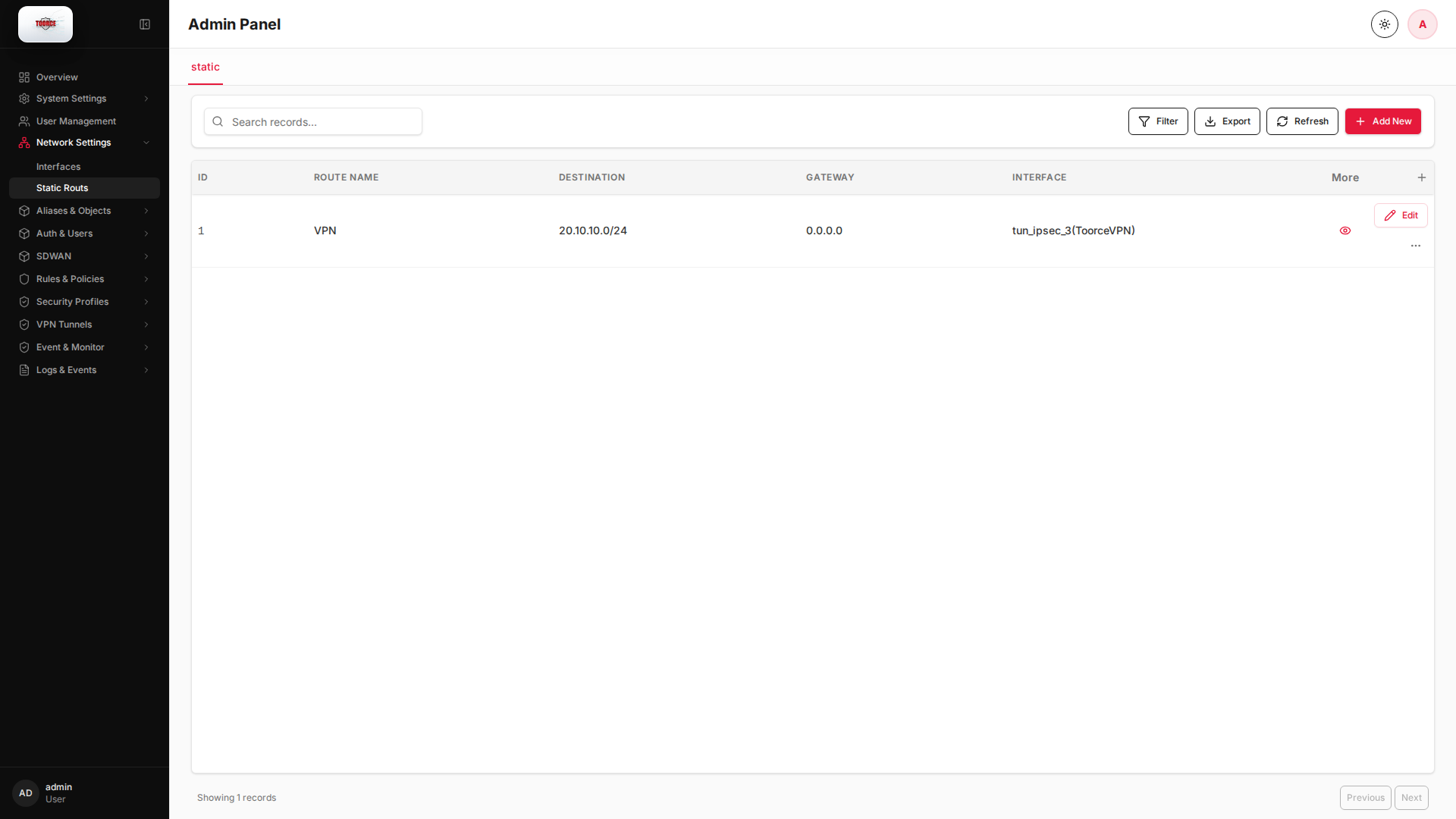
Add form
Empty form after clicking + Add New:
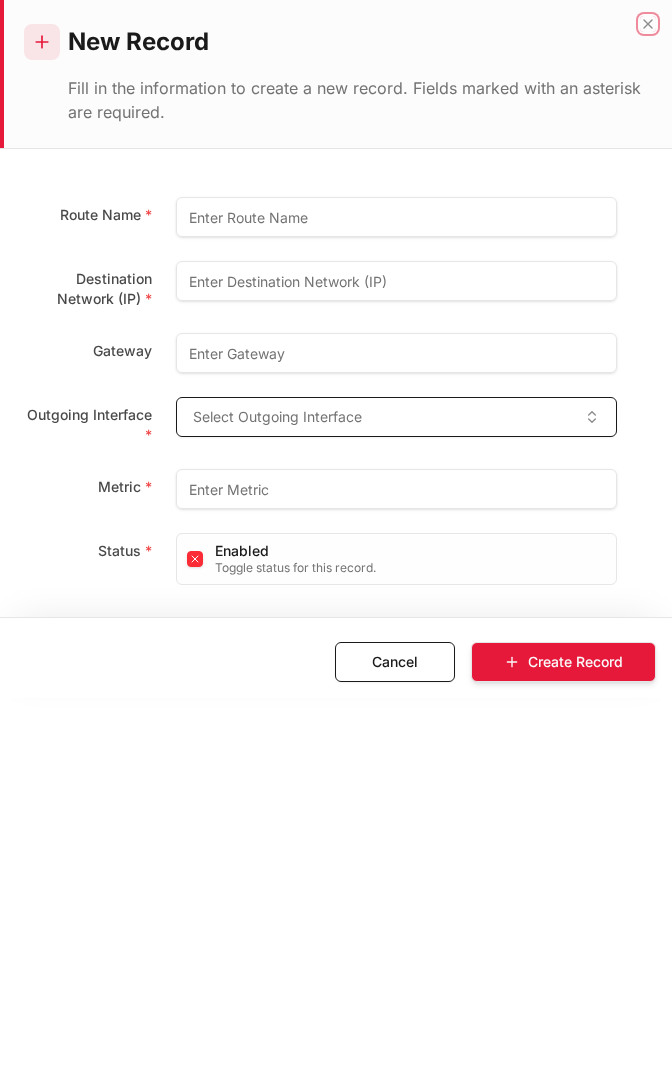
Same form filled with example data (do not save in production):
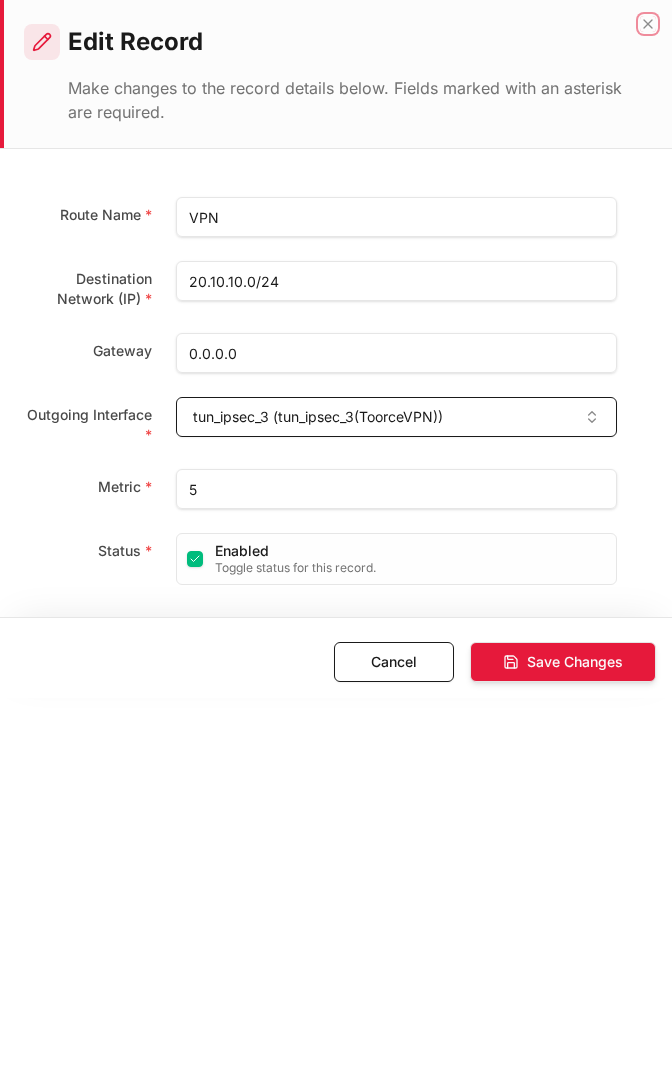
Edit form
Existing record opened with Edit:
Form fields explained
Dialog title: New Record — Static Route
| Field | Required | Description | Example value |
|---|---|---|---|
| Route Name | Yes | Descriptive name for the route | Branch_Office |
| Destination Network | Yes | Remote network in CIDR notation | 10.10.0.0/16 |
| Gateway | Yes | Next-hop router IP address | 192.168.100.1 |
| Interface | Yes | Egress interface for this route | LAN |
| Metric | No | Route priority — lower is preferred | 1 |
| Status | Yes | Enable or disable the route | Enabled |
Technical background
Static routing
A static route tells the firewall how to reach a remote network that is not directly connected. The firewall forwards matching packets to a gateway (next-hop router) via a specific interface.
When you need static routes
- Remote office networks reached via a core router
- VPN subnets that are not auto-installed
- Multi-homed setups with policy-based routing
Metrics and priority
Lower metric = higher priority. If two routes exist for the same destination, the route with the lowest metric wins. This is standard IP routing behavior (RFC 791, updated by CIDR RFC 4632).
Table columns
| Column | Description |
|---|---|
| ID | Route ID |
| Route Name | Descriptive name |
| Destination | Destination network (CIDR) |
| Gateway | Next-hop IP address |
| Interface | Outgoing interface |
| Metric | Route priority (lower = preferred) |
| Status | Enabled / Disabled |
How to add a static route
- Go to Network Settings → Static Routs.
- Click Add New.
- Fill in:
| Field | Required | What to enter |
|---|---|---|
| Route Name | Yes | e.g. Route_to_Branch |
| Destination Network (IP) | Yes | Remote network CIDR, e.g. 10.10.0.0/16 |
| Gateway | Yes | Next-hop router IP, e.g. 192.168.100.254 |
| Outgoing Interface | Yes | Interface to send traffic out, e.g. enp6s0 |
| Metric | No | Priority (default 1) |
| Enabled | Yes | ✓ to activate |
- Click Save.
Example: Route to remote office
| Field | Value |
|---|---|
| Route Name | Branch_Office |
| Destination | 10.20.0.0/16 |
| Gateway | 192.168.100.254 |
| Interface | enp6s0 (LAN) |
| Metric | 1 |
Where routes are used
Static routes control how the firewall forwards traffic. They interact with:
- Inline Rules — traffic must be routed before rules are evaluated
- VPN Tunnels — often auto-add routes for remote networks
- SDWAN — overrides default routing per link