FQDN Allow / Block Policy
Navigation: Scenarios → FQDN Policy
Control outbound access using fully qualified domain names (FQDNs) instead of static IPs. The firewall resolves each FQDN to IP addresses and refreshes the resolved list every 60 seconds, so policies stay correct when cloud services change IPs.
Important: TOORCE accepts literal FQDN hostnames only. Wildcards (
*.example.com) and regular expressions are not allowed as FQDN entries.
Network design
LAN users send traffic through the firewall. Rules match destination FQDN address objects. The firewall DNS engine re-resolves those names on a 60-second interval and updates the active policy IP set automatically.
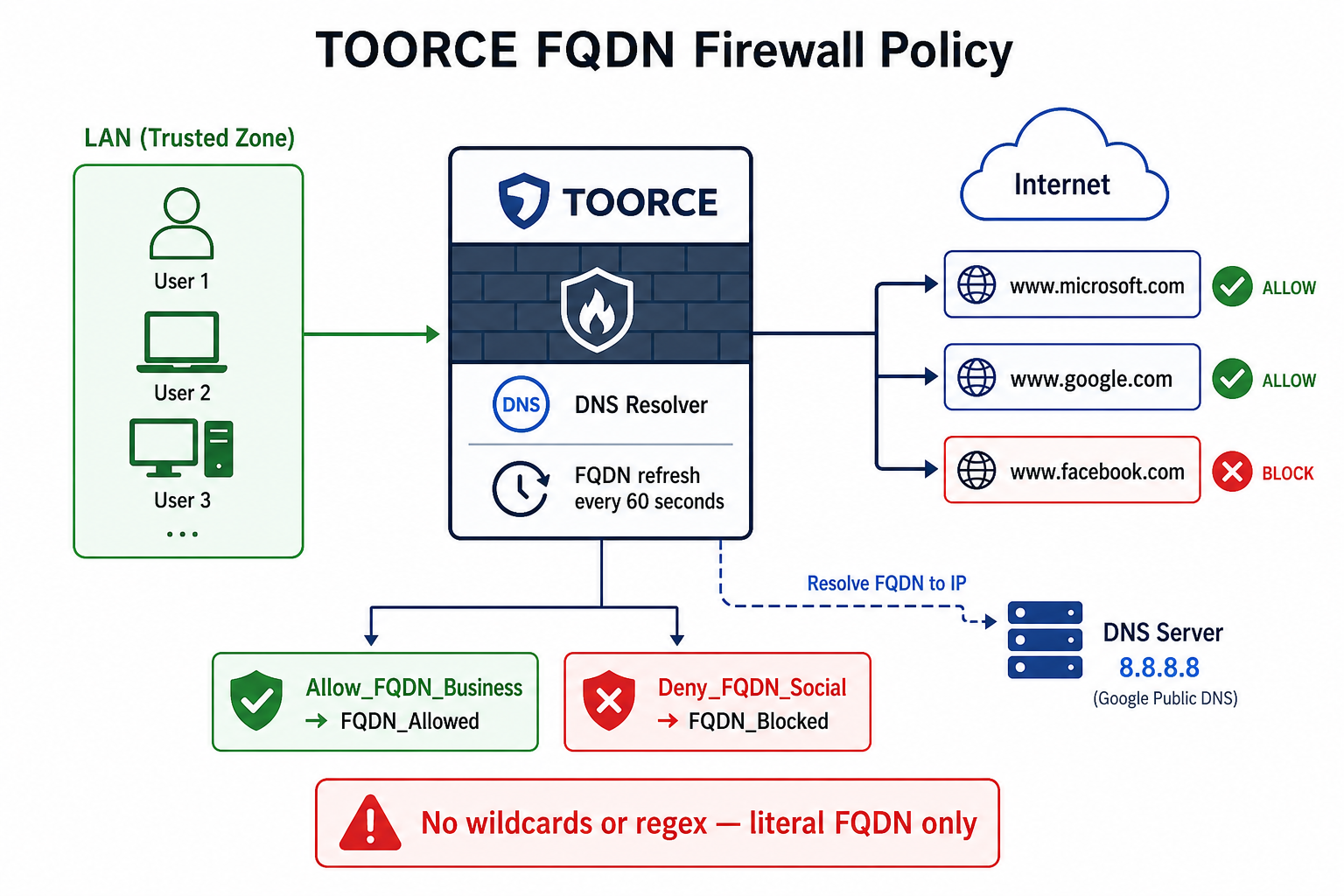
Figure 1 — FQDN resolution, 60-second refresh, allow and deny rules
How FQDN policy works
1. Admin creates Address Object (type FQDN) → e.g. www.microsoft.com
2. Firewall resolves FQDN via System DNS → 20.190.x.x, 40.126.x.x, ...
3. Every 60 seconds → re-resolve and update IP list in kernel/policy
4. Inline rule references FQDN object → Allow or Deny matched traffic
5. IP changes at provider → next refresh picks up new addresses (no rule edit)
Prerequisites
- LAN and WAN interfaces configured (NAT Gateway or equivalent internet access)
- System DNS configured on the firewall (required for FQDN resolution)
- Outbound DNS (UDP/TCP 53) allowed for the firewall itself
Step 1 — Configure system DNS on the firewall
FQDN objects cannot resolve without a working DNS resolver on the appliance.
- Go to System Settings → General → General tab.
- Click Edit and set:
| Field | Example |
|---|---|
| System DNS Server | 8.8.8.8 |
| Secondary DNS (if available) | 1.1.1.1 |
- Click Save.
The firewall uses this DNS server to resolve all FQDN address objects every 60 seconds.
Step 2 — Create FQDN address objects (allowed destinations)
- Go to Aliases & Objects → Address.
- Click + Add New.
- Create objects for each allowed hostname — one FQDN per object (or one object with multiple literal FQDNs, one per line):
| Object name | Address type | FQDN value | Notes |
|---|---|---|---|
FQDN_Microsoft_Update |
FQDN | www.microsoft.com |
Literal hostname only |
FQDN_Office365 |
FQDN | outlook.office365.com |
No wildcard |
FQDN_Google_DNS |
FQDN | dns.google |
Valid FQDN |
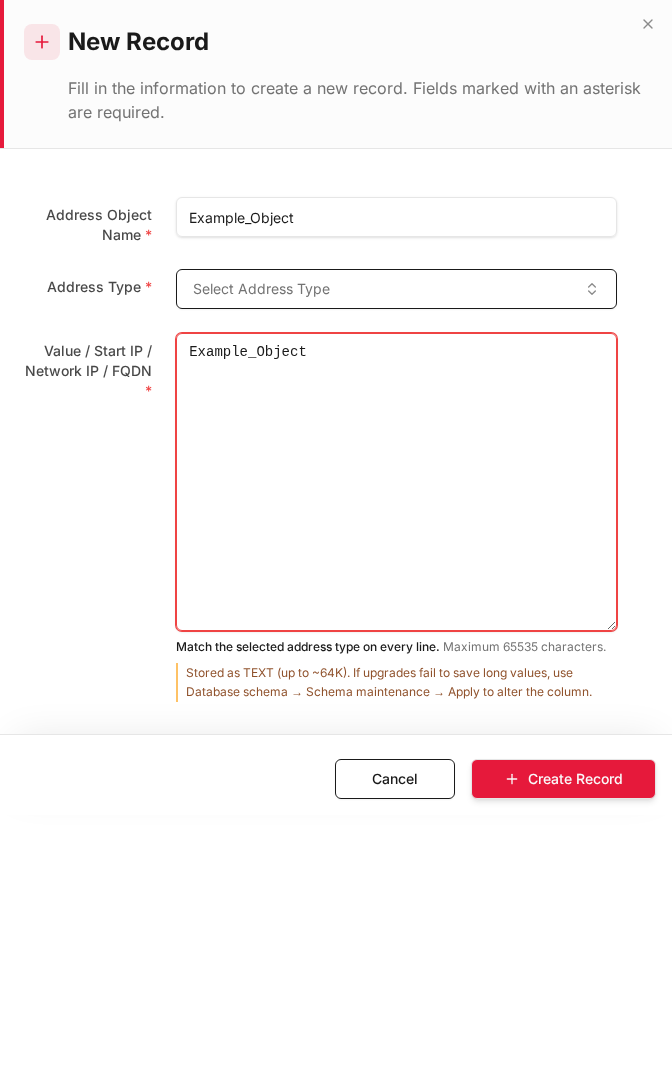
- Click + Create Record.
Allowed FQDN format rules
| Allowed | Not allowed |
|---|---|
www.example.com |
*.example.com (wildcard) |
api.service.example.com |
.*example.* (regex) |
mail.company.local |
example* (pattern) |
sub.domain.co.uk |
%example.com% |
Each entry must be a complete, resolvable hostname. The firewall validates the format and rejects wildcards and regular expressions.
Step 3 — Create FQDN address objects (blocked destinations)
Create separate objects for destinations you want to deny:
| Object name | Address type | FQDN value |
|---|---|---|
FQDN_Block_Social |
FQDN | www.facebook.com |
FQDN_Block_Streaming |
FQDN | www.netflix.com |
FQDN_Block_Gaming |
FQDN | store.steampowered.com |
For multiple blocked sites, create one object per FQDN or group related FQDNs in a single FQDN list object (still literal names only, no wildcards).
Step 4 — Create allow rule (FQDN destinations)
Allow LAN users to reach approved FQDNs only.
- Go to Rules & Policies → Inline Rules → + Add New.
General
| Field | Value |
|---|---|
| Rule Name | Allow_Approved_FQDN |
| Action | Allow |
| Status | Enabled |
Interfaces
| Field | Value |
|---|---|
| Source Interface | enp6s0 (LAN) |
| Destination Interface | enp9s0 (WAN) |
Source
| Field | Value |
|---|---|
| Source Address | LAN_Network |
| Source Service | Any |
Destination
| Field | Value |
|---|---|
| Destination Address Objects | FQDN_Microsoft_Update, FQDN_Office365, FQDN_Google_DNS |
| Destination Service | HTTPS (port 443) or specific ports |
The rule matches traffic to current resolved IPs of those FQDNs. When Microsoft changes CDN addresses, the firewall picks up new IPs on the next 60-second refresh.
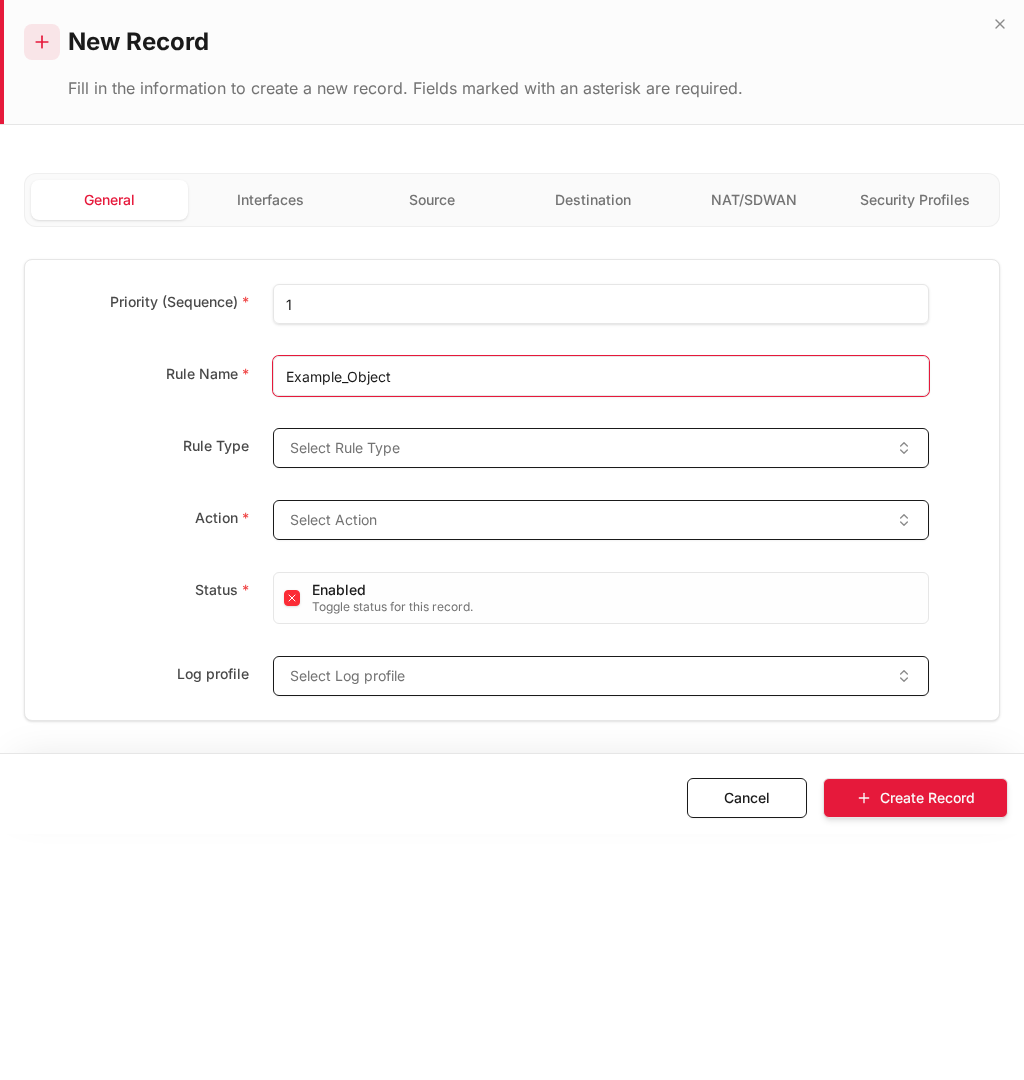
- Click + Create Record.
Step 5 — Create deny rules (block FQDN destinations)
Place deny FQDN rules above the general allow rule.
- Click + Add New.
| Field | Value |
|---|---|
| Rule Name | Deny_Blocked_FQDN |
| Action | Deny |
| Source Interface | LAN |
| Destination Interface | WAN |
| Source Address | LAN_Network |
| Destination Address | FQDN_Block_Social, FQDN_Block_Streaming, FQDN_Block_Gaming |
| Service | Any or HTTPS |
| Log profile | Default (recommended — log blocked FQDN hits) |
- Click + Create Record.
- Click Install Policy.
Step 6 — Verify FQDN resolution and 60-second refresh
| Check | How | Expected |
|---|---|---|
| DNS working | Firewall can resolve FQDN via System DNS | Address object shows resolved IPs |
| Allow rule | Browse to allowed FQDN from LAN PC | Traffic passed in firewall logs |
| Deny rule | Browse to blocked FQDN | Traffic denied / blocked |
| Refresh cycle | Wait 60+ seconds after provider IP change | New IPs matched without editing rule |
| Invalid entry | Try adding *.example.com |
Rejected — wildcards not allowed |
| Invalid entry | Try regex pattern | Rejected — regular expressions not allowed |
Monitor results in Logs & Events → Firewall Security — policy name shows Allow_Approved_FQDN or Deny_Blocked_FQDN.
Recommended rule order
| Priority | Rule name | Action | Destination |
|---|---|---|---|
| 1 | Deny_Blocked_FQDN |
Deny | FQDN block objects |
| 2 | Allow_Approved_FQDN |
Allow | FQDN allow objects |
| 3 | Deny_All_Other_Internet |
Deny | Any (catch-all) |
This implements a default-deny internet policy where only approved FQDNs are reachable.
FQDN vs static IP — when to use each
| Use FQDN when | Use static IP when |
|---|---|
| Destination uses CDN / changing IPs | Destination has fixed IP forever |
| SaaS cloud services (Microsoft, Google) | Internal server with static address |
| You want automatic IP updates every 60s | DNS resolution is not possible |
Design notes
- 60-second refresh — rules always use the latest DNS answer; allow up to 60s delay after a provider IP change.
- DNS dependency — if System DNS fails, FQDN objects may not resolve and rules will not match as expected.
- One name = one hostname — use separate objects for
www.example.comandapi.example.comif both are needed. - No wildcards — to allow all subdomains you must add each FQDN explicitly (e.g.
mail.example.com,api.example.com,cdn.example.com). - HTTPS SNI — FQDN policy works at Layer 3/4 on resolved IPs; for full URL filtering use Web Security profiles.
Related topics
- Address Objects — FQDN type
- Inline Rules
- System Settings — DNS
- Firewall Security Logs
- Web Security — URL/category filtering
- DNS Security — DNSSEC, threat intel, and DNS-layer category filtering
- All Scenarios