L2TP over IPsec Remote VPN
Navigation: Scenarios → L2TP over IPsec VPN
Deploy a TOORCE L2TP VPN server with IPsec encryption and a pre-shared key (secret). Remote Windows and macOS users connect with the built-in OS VPN client — no third-party app required.
Network design
L2TP runs inside IPsec. The client first negotiates IPsec (IKE) using the shared secret, then authenticates to the L2TP server with username/password, and receives an IP from the VPN client pool.
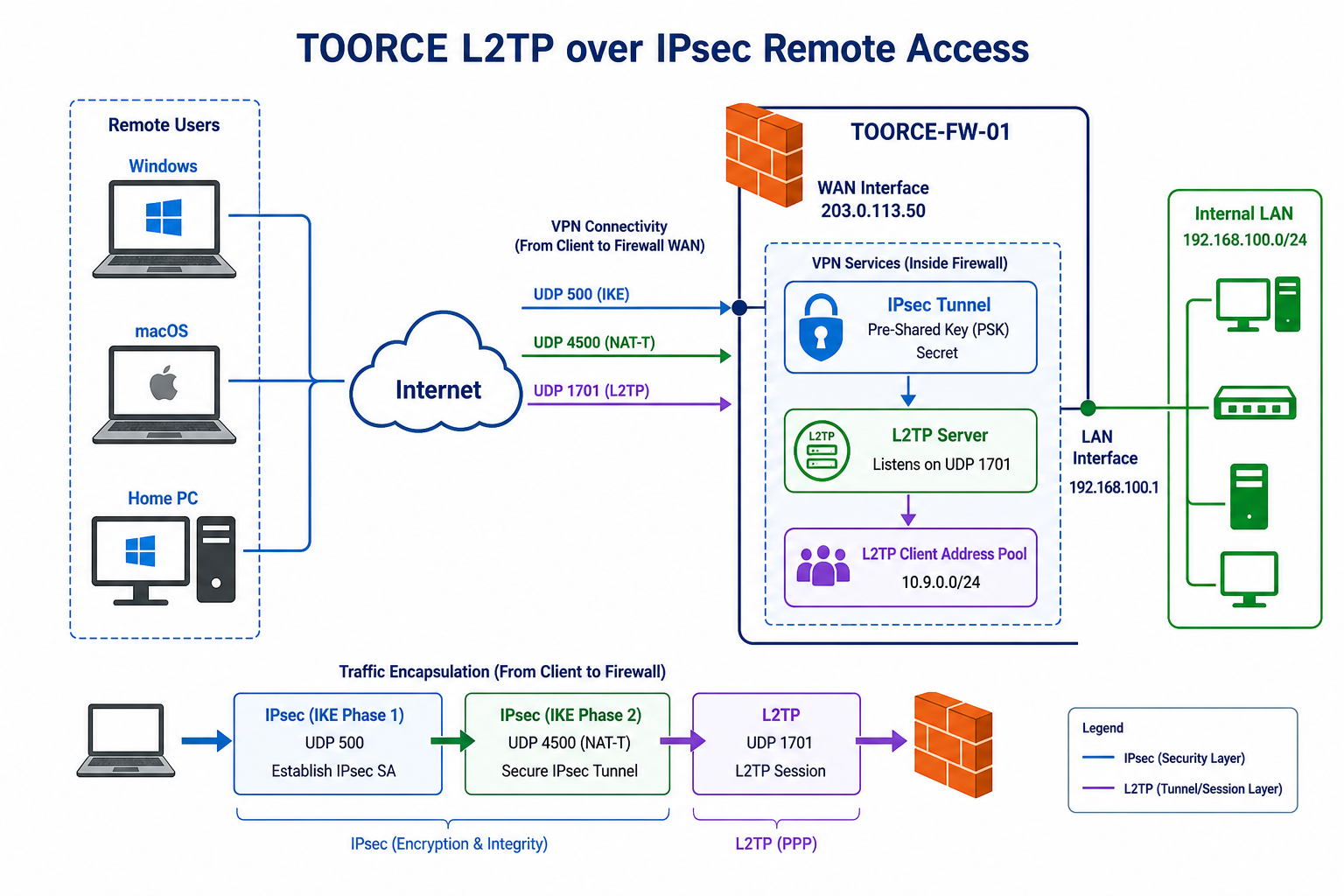
Figure 1 — Remote client → IPsec (PSK) → L2TP → TOORCE firewall → LAN
Protocol stack
| Layer | Protocol | Port | Purpose |
|---|---|---|---|
| 1 | IPsec / IKE | UDP 500, UDP 4500 (NAT-T) | Encrypts tunnel — authenticated with pre-shared key |
| 2 | L2TP | UDP 1701 | User VPN session inside IPsec |
| 3 | PPP | (inside L2TP) | User auth + IP address assignment |
Reference addressing
| Item | Example value |
|---|---|
| Firewall WAN IP | 203.0.113.50 |
| IPsec pre-shared key | ToorceL2TP-Secret-2026! |
| L2TP client pool | 10.9.0.2 – 10.9.0.254 |
| LAN network | 192.168.100.0/24 |
| VPN user | vpn_user1 / password |
Prerequisites
- WAN interface with public IP (or port-forward UDP 500, 4500, 1701)
- Local user or AD user for VPN authentication
- NAT Gateway or outbound internet rule on WAN
Step 1 — Create VPN user accounts
L2TP authenticates users with username + password after IPsec is established.
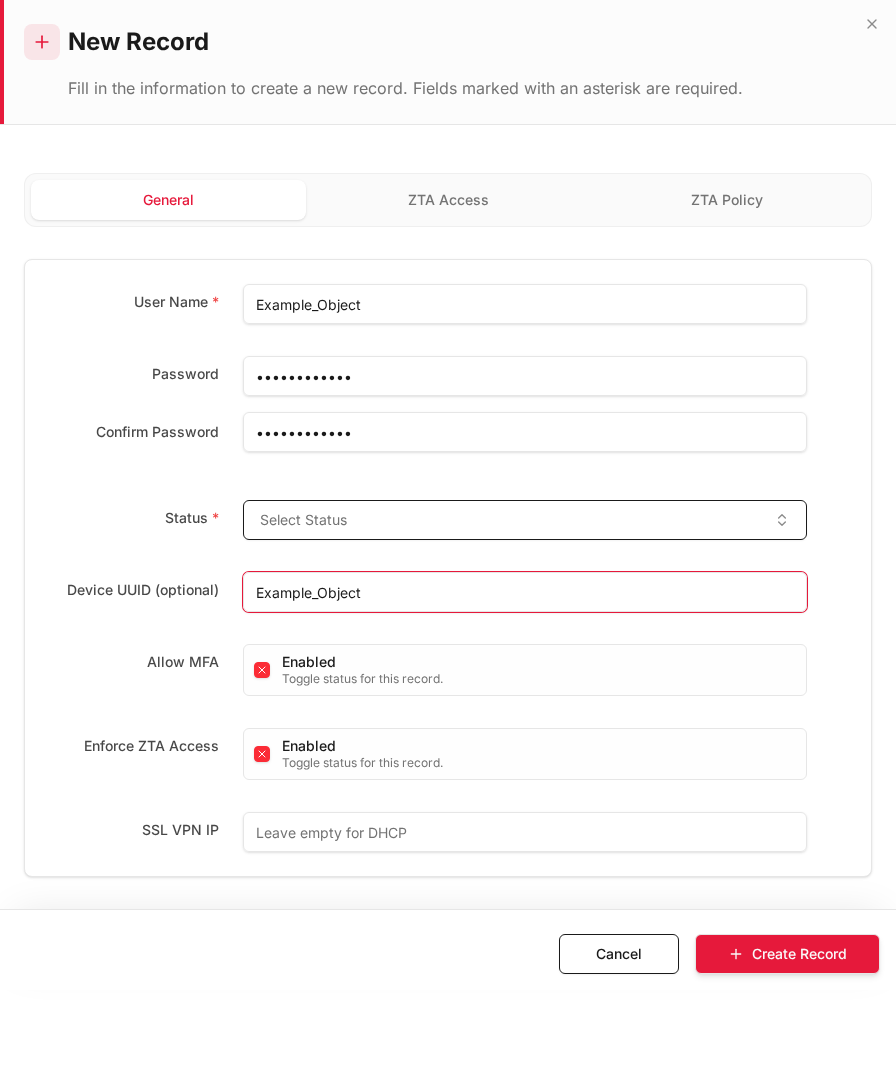
- Go to Auth & Users → Local Users/Groups (or use AD users).
- Click + Add New user:
| Field | Example |
|---|---|
| Username | vpn_user1 |
| Password | Strong password |
| Status | Active |
- Optionally create a vpn_users group and assign allowed users.
Step 2 — Configure the L2TP server on TOORCE
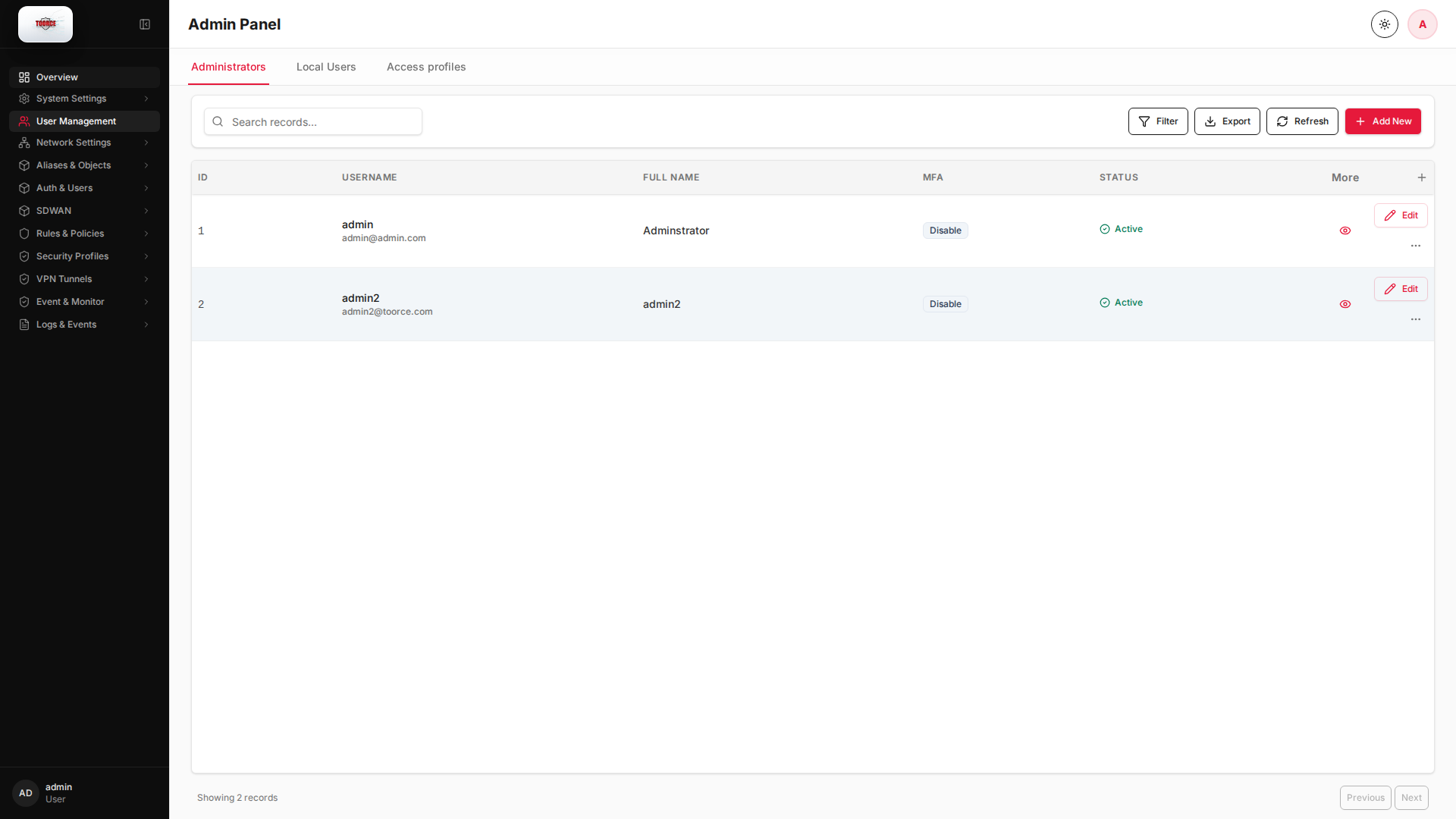
- Go to VPN Tunnels → L2TP VPN.
- Click + Add New (or Edit the L2TP server record).
Server form fields
| Field | Required | Description | Example |
|---|---|---|---|
| Server Name | Yes | Profile name | TOORCE_L2TP |
| Enabled | Yes | Turn L2TP server on | Active |
| Listen Interface | Yes | WAN interface clients connect to | enp9s0 (WAN) |
| Server IP / WAN address | Yes | Public IP clients dial | 203.0.113.50 |
| IPsec Pre-Shared Key | Yes | Shared secret for IPsec — must match client | ToorceL2TP-Secret-2026! |
| IPsec Authentication | Yes | Pre-Shared Key (PSK) | PSK |
| IKE Version | Yes | IKEv1 (required for native Windows/macOS L2TP) | IKEv1 |
| L2TP Client Pool Start | Yes | First IP assigned to VPN clients | 10.9.0.2 |
| L2TP Client Pool End | Yes | Last IP in pool | 10.9.0.254 |
| DNS Server | No | DNS pushed to VPN clients | 192.168.100.1 or 8.8.8.8 |
| Allowed Users / Groups | Yes | Who may connect | vpn_user1, vpn_users |
| Require IPsec | Yes | L2TP only inside IPsec (recommended) | Enabled |
| NAT-T | Yes | Allow clients behind NAT | Enabled |
- Click + Create Record / Save.
- Click Install Policy if prompted.
Important: The pre-shared key on the firewall must match exactly what remote clients enter as Shared Secret (macOS) or Pre-shared key (Windows).
Step 3 — Allow IPsec and L2TP on the firewall
Ensure WAN accepts VPN protocols (often auto-created by Install Policy):
| Rule | Source | Destination | Ports | Action |
|---|---|---|---|---|
Allow_IPsec_IKE |
Any | WAN | UDP 500 | Allow |
Allow_IPsec_NAT-T |
Any | WAN | UDP 4500 | Allow |
Allow_L2TP |
Any | WAN | UDP 1701 | Allow |
Add an inline rule allowing VPN clients to reach LAN:
| Field | Value |
|---|---|
| Source | 10.9.0.0/24 (VPN pool) |
| Destination | 192.168.100.0/24 (LAN) |
| Action | Allow |
Step 4 — Connect from Windows (native VPN)
Windows includes L2TP/IPsec with pre-shared key — no extra software needed.
Add VPN connection
- Open Settings → Network & Internet → VPN → Add a VPN connection.
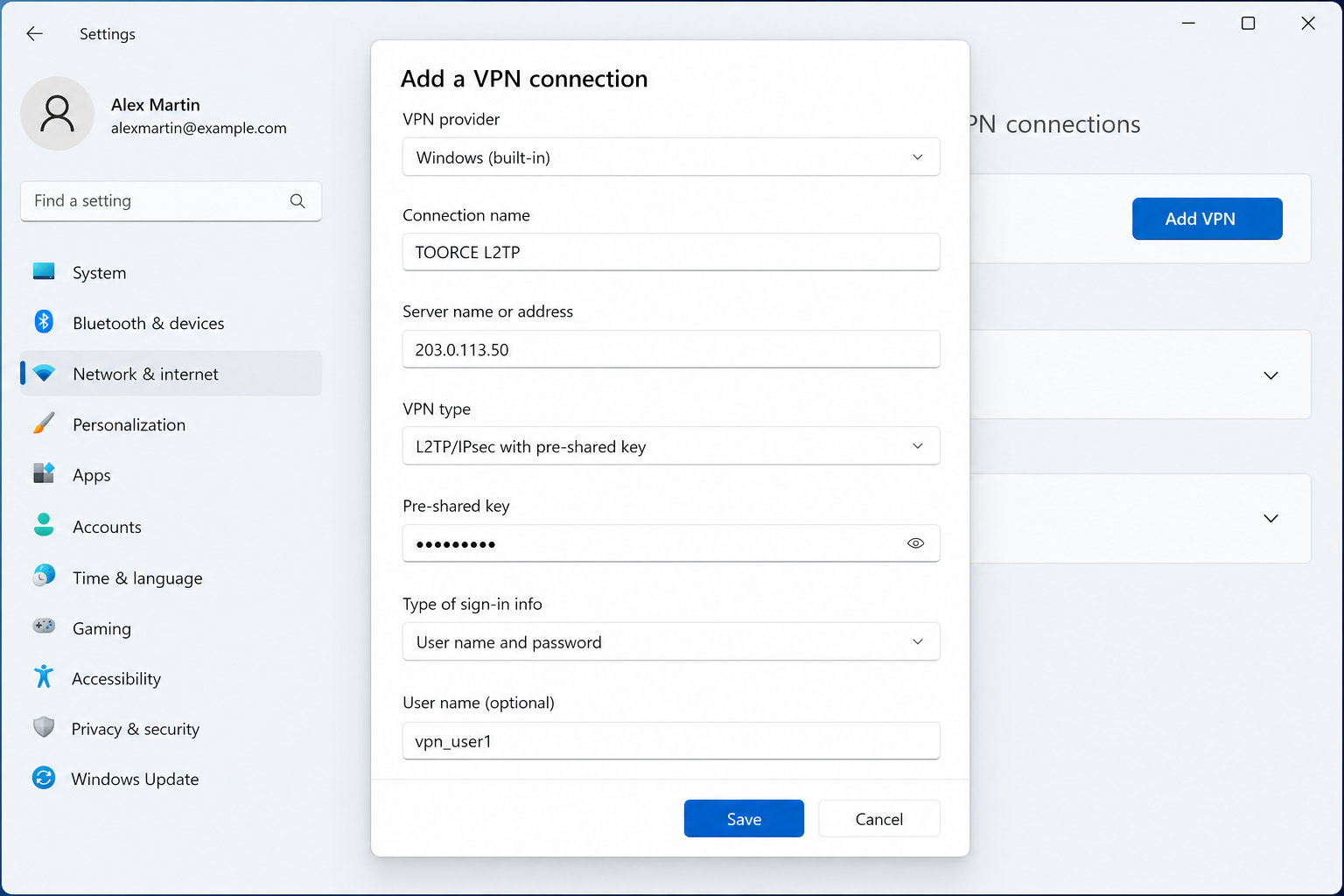
Figure 2 — Windows built-in VPN configuration
| Field | Value |
|---|---|
| VPN provider | Windows (built-in) |
| Connection name | TOORCE L2TP |
| Server name or address | 203.0.113.50 (firewall WAN IP) |
| VPN type | L2TP/IPsec with pre-shared key |
| Pre-shared key | ToorceL2TP-Secret-2026! (same as firewall) |
| Type of sign-in info | User name and password |
| User name | vpn_user1 |
| Password | User password |
- Click Save.
- Click the VPN connection → Connect.
Windows verification
| Check | Expected |
|---|---|
| Status | Connected |
| Assigned IP | 10.9.0.x |
| Ping LAN | ping 192.168.100.1 succeeds |
| Firewall logs | L2TP session for vpn_user1 |
Step 5 — Connect from macOS (native VPN)
macOS supports L2TP over IPsec in System Settings → Network.
Add VPN configuration
- Open System Settings → Network → ⋯ → Add VPN Configuration → L2TP over IPSec.
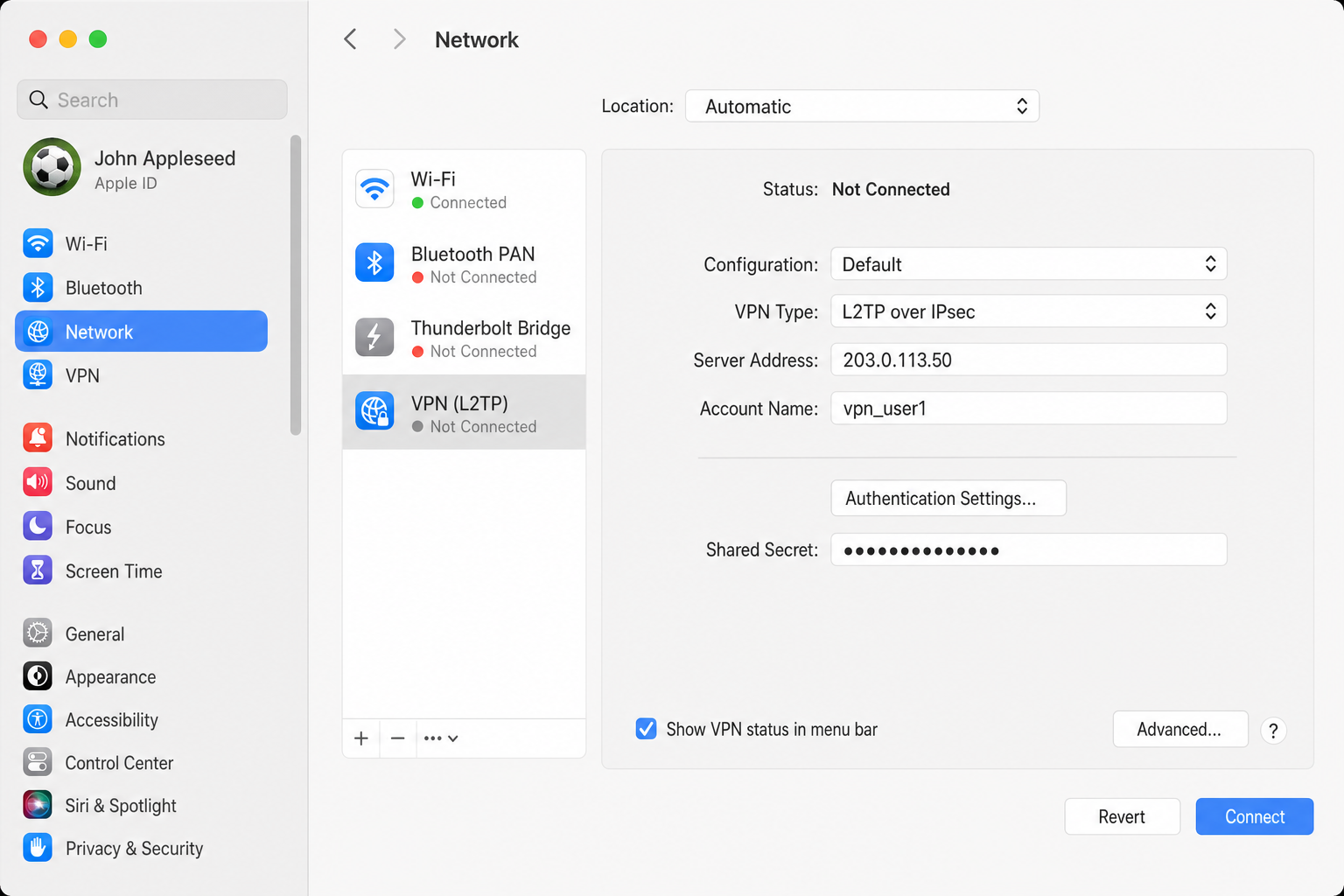
Figure 3 — macOS built-in L2TP over IPsec configuration
| Field | Value |
|---|---|
| Server Address | 203.0.113.50 |
| Account Name | vpn_user1 |
| Password | User password (in Authentication Settings) |
| Shared Secret | ToorceL2TP-Secret-2026! (IPsec PSK — same as firewall) |
| Send all traffic over VPN | Enable if full tunnel required |
- Click Create / Apply.
- Click Connect.
macOS verification
| Check | Expected |
|---|---|
| Status | Connected |
| Interface | ppp0 or L2TP shows connected |
| IP address | 10.9.0.x |
| Access LAN resources | Reach 192.168.100.x hosts |
Step 6 — Verify on the firewall
| Check | Location | Expected |
|---|---|---|
| L2TP sessions | VPN Tunnels → L2TP VPN | Connected users listed |
| SSL/ZTA or VPN logs | Logs & Events | Session up/down events |
| Client IP pool | Assigned IP column | 10.9.0.x per user |
| IPsec SA | System / VPN status | IKE phase 1 + 2 established |
Connection flow (packet sequence)
Client                          TOORCE Firewall
  │                                    │
  ├── UDP 500 IKE + PSK ──────────────►│  IPsec Phase 1 (authenticate secret)
  │◄── IKE SA established ─────────────┤
  ├── UDP 4500 ESP (NAT-T) ───────────►│  IPsec Phase 2 (encrypt channel)
  │◄── IPsec tunnel ready ─────────────┤
  ├── UDP 1701 L2TP ───────────────────►│  L2TP tunnel setup
  ├── PPP username/password ───────────►│  User authentication
  │◄── IP 10.9.0.x assigned ───────────┤
  ├── Encrypted traffic to LAN ────────►│  Forward to 192.168.100.0/24
Troubleshooting
| Symptom | Cause | Fix |
|---|---|---|
| Windows error 809 | UDP 500/4500 blocked | Open IPsec ports on WAN; enable NAT-T |
| macOS "IPsec shared secret incorrect" | PSK mismatch | Match Shared Secret to firewall PSK exactly |
| L2TP auth fails | Wrong username/password | Verify user in Allowed Users |
| Connects but no LAN access | Missing firewall rule | Allow 10.9.0.0/24 → LAN in inline rules |
| No IP assigned | Pool exhausted or misconfigured | Check pool range in L2TP server form |
| Works on LAN, fails remotely | No port forward / wrong WAN IP | Use public IP; forward UDP 500/4500/1701 |
Security recommendations
- Use a long, random pre-shared key (20+ characters)
- Use unique passwords per VPN user; enable MFA where supported
- Restrict Allowed Users to the
vpn_usersgroup only - Log VPN sessions and review Logs & Events regularly
- Consider SSL/ZTA VPN for advanced zero-trust remote access