SSO Policy (Active Directory)
Navigation: Scenarios → SSO Policy
Configure Single Sign-On (SSO) so the TOORCE Firewall knows which Active Directory user is logged in on a LAN PC. User identity is then used in inline rules (Source Users / SSO groups) for identity-aware policies.
Network design
Domain users log in to Windows. The Logon Forwarder agent on the domain controller reads Security event 4624 and sends logon events to the firewall ingest API. The firewall maps users to SSO groups and applies rules.
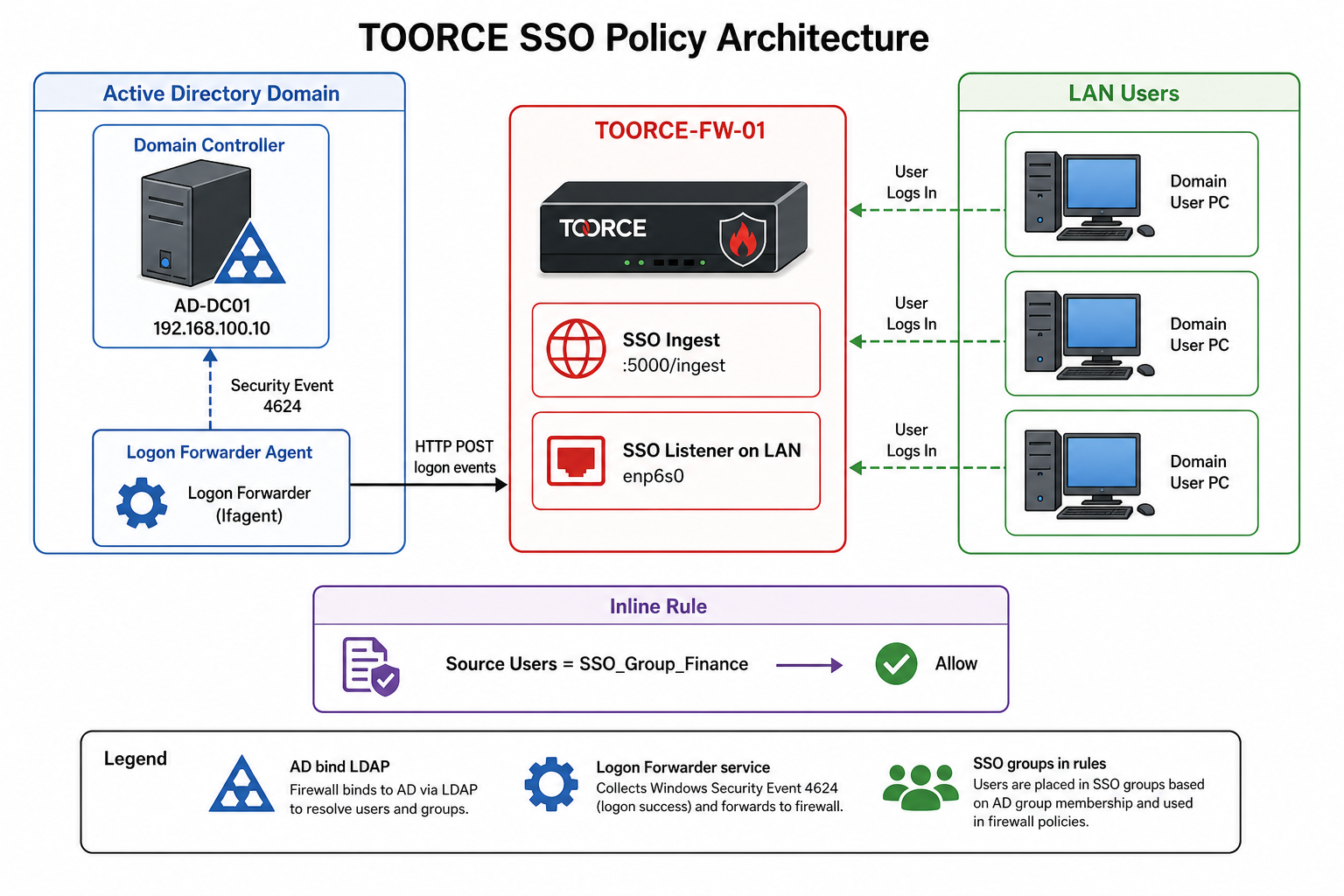
Figure 1 — AD, Logon Forwarder, firewall SSO listener, and rule assignment
Component summary
| Component | Location | Role |
|---|---|---|
| Active Directory | Domain controller | User/group directory |
| AD profile | Firewall → Auth & Users → AD | LDAP bind for users and groups |
| Logon Forwarder | Installed on AD server | Forwards interactive/RDP logons to firewall |
| SSO ingest | Firewall :5000/ingest |
Receives logon events from agent |
| SSO listener | LAN interface (enp6s0) |
Client-side SSO queries on LAN |
| SSO groups | Firewall (synced from AD) | Assigned in inline rules |
Prerequisites
- Windows Active Directory domain controller reachable from the firewall
- LDAP service account for firewall → AD queries
- Firewall management access
- Logon Forwarder installer (
Toorce Logon Forwarder Installer 1.0.13or current build) - Audit policy: Audit Logon enabled (event 4624)
Step 1 — Add Active Directory on the firewall
- Go to Auth & Users → Active Directory (AD).
- Click + Add New.
- Fill in:
| Field | Example |
|---|---|
| Name | Corp_AD |
| Domain Controller IP | 192.168.100.10 |
| Bind Username | CN=svc_fw,OU=Service,DC=corp,DC=local |
| Bind Password | (service account password) |
| Search Base | DC=corp,DC=local |
- Click + Create Record and verify the AD connection test succeeds.
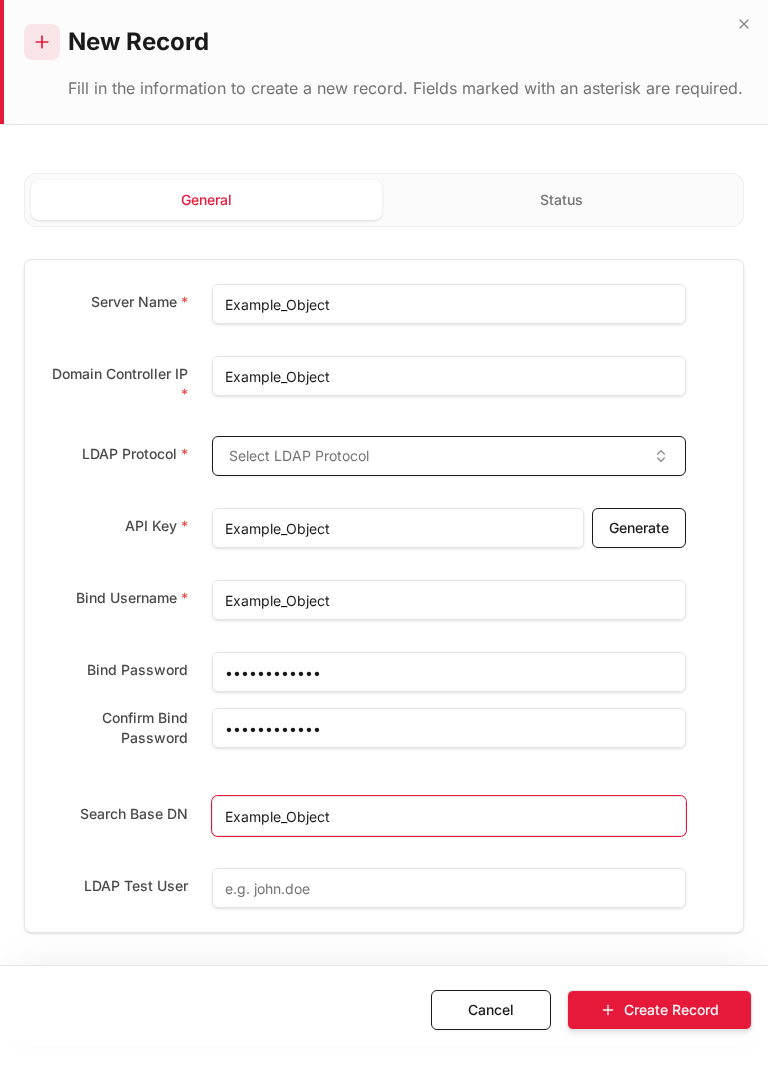
Full reference: Active Directory (AD)
Step 2 — Enable SSO listener on the LAN interface
The SSO listener must be enabled on the interface where domain clients connect (typically LAN).
- Go to Network Settings → Interfaces.
- Click Edit on the LAN interface (e.g.
enp6s0). - Open the Admin Access tab (or interface SSO section).
- Enable SSO listener on this interface.
- Click Save.
| Field | Value |
|---|---|
| Interface | enp6s0 (LAN) |
| SSO listener | Enabled |
| HTTPS Admin | Enabled on LAN only (recommended) |
Confirm SSO Server Listen Port under System Settings → General if your environment uses a custom port (default documented as 8443 for SSO services; agent ingest uses port 5000 — see Step 4).
Step 3 — Install Logon Forwarder on the domain controller
Run the installer on the Active Directory server (or a dedicated forwarder host with Security log read access).
- Launch Toorce Logon Forwarder Installer.
- Set the install folder (default:
C:\Program Files\LogonForwarder). - Set Endpoint URL to your firewall ingest address:
| Field | Value |
|---|---|
| Endpoint URL | http://<FIREWALL-IP>:5000/ingest |
| Example | http://192.168.100.1:5000/ingest |
- Enter API key if configured on the firewall (optional).
- Timeout seconds:
10 - Check Start service after install.
- Click Install / Update.
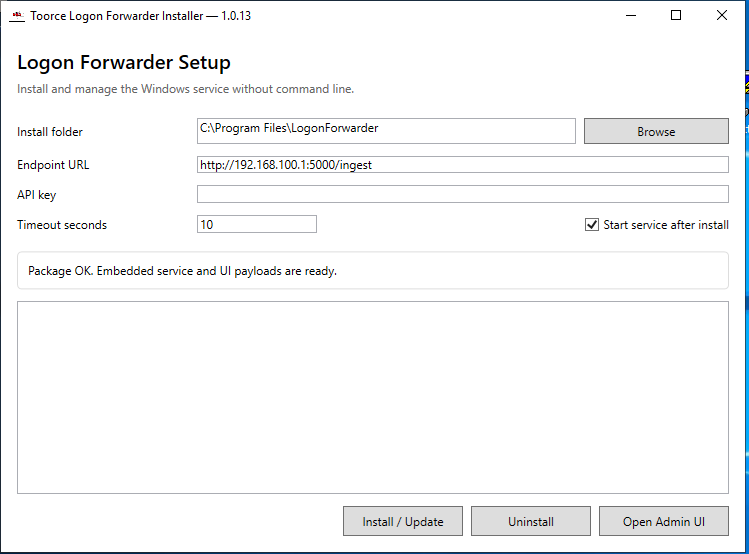
Replace 192.168.100.1 with your actual firewall LAN/management IP.
Step 4 — Configure the agent and start the service
After installation, open Logon Forwarder (Admin UI) on the domain controller.
Remote destination
| Field | Value |
|---|---|
| Endpoint URL | http://192.168.100.1:5000/ingest |
| TOORCE firewall IP | Your firewall IP (use Use TOORCE IP button) |
| Port | 5000 |
| API Key | Match firewall setting (if used) |
| Timeout (sec) | 10 |
Audit policy
| Status | Required |
|---|---|
| Audit Logon | ENABLED |
If disabled, click Create audit GPO or How to enable (GPO) so Security event 4624 is logged for domain interactive and RDP logons.
Service installation and runtime
- Service EXE path:
C:\Program Files\LogonForwarder\service\LogonForwarder.exe - Click Install (if not already installed).
- Click Start — status should show Service: Running.
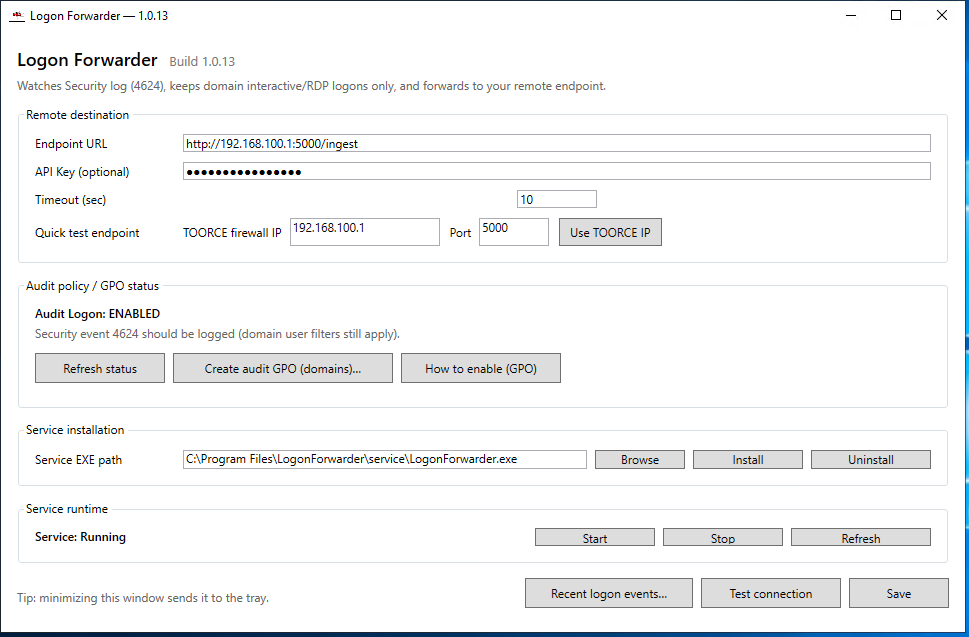
Step 5 — Test connection to the firewall
- In Logon Forwarder, click Test connection.
- Confirm success status (agent can reach
http://<firewall-ip>:5000/ingest). - Click Save.
- Log in to a domain PC on the LAN (interactive or RDP).
- Open Recent logon events in the agent to confirm 4624 events are captured.
- On the firewall, open Logs & Events → SSO Login Logs and verify new entries appear.
| Check | Expected |
|---|---|
| Test connection | Success |
| Service status | Running |
| SSO Login Logs | User logon events listed |
Step 6 — Add SSO groups on the firewall
Import or create SSO groups that mirror AD security groups used in policy.
- Go to Auth & Users → Active Directory (AD) (or Local Users/Groups if SSO groups are managed there).
- Sync or Add New group entries mapped to AD groups, for example:
| SSO group name | AD group | Purpose |
|---|---|---|
SSO_Finance |
CN=Finance_Users,OU=Groups,DC=corp,DC=local |
Finance department access |
SSO_IT |
CN=IT_Admins,OU=Groups,DC=corp,DC=local |
IT admin access |
SSO_Guest |
CN=Guest_WiFi,OU=Groups,DC=corp,DC=local |
Restricted guest access |
- Save each group and confirm members resolve from AD.
Groups must match AD group names/DNs used by logged-in users forwarded by the Logon Forwarder.
Step 7 — Assign SSO groups to an inline rule
Create or edit a firewall rule that matches traffic by SSO user/group instead of IP alone.
- Go to Rules & Policies → Inline Rules → + Add New (or Edit).
- Configure:
General
| Field | Example |
|---|---|
| Rule Name | Allow_Finance_Internet |
| Action | Allow |
| Status | Enabled |
Interfaces
| Field | Value |
|---|---|
| Source Interface | enp6s0 (LAN) |
| Destination Interface | enp9s0 (WAN) |
Source tab
| Field | Value |
|---|---|
| Source Address | LAN_Network or Any |
| Source Users / SSO groups | SSO_Finance |
Only users in the Finance AD group (identified via SSO) match this rule.
Destination
| Field | Value |
|---|---|
| Destination | Any (or specific servers) |
| Service | Any or restricted ports |
- Click + Create Record.
- Click Install Policy.
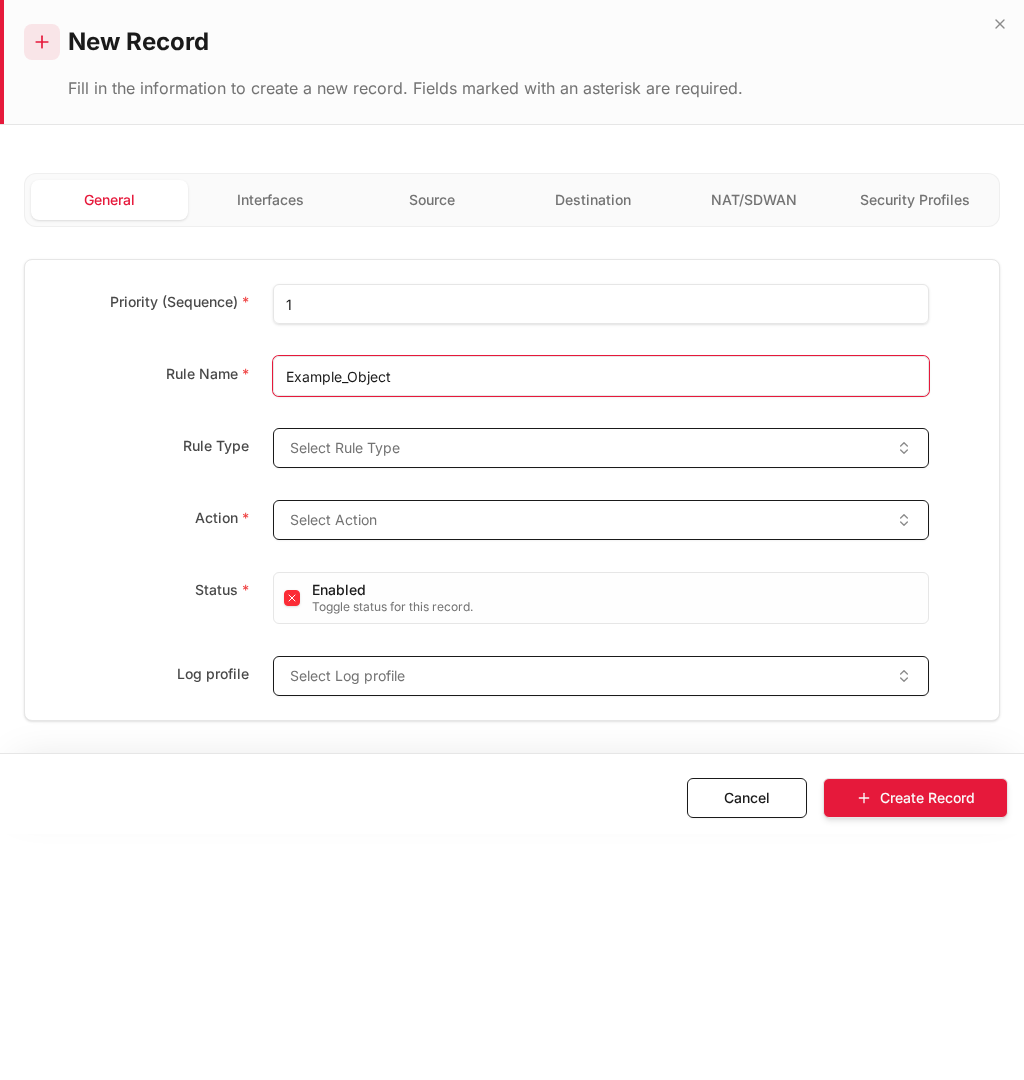
Source Users field reference: Inline Rules
Example policy set
| Rule name | SSO group | Action | Destination |
|---|---|---|---|
Allow_Finance_Internet |
SSO_Finance |
Allow | Internet |
Allow_IT_Servers |
SSO_IT |
Allow | Internal servers |
Deny_Guest_Servers |
SSO_Guest |
Deny | Server VLAN |
Verification checklist
| Step | Verification |
|---|---|
| AD connected | AD profile shows active / test bind OK |
| SSO listener | Enabled on LAN interface |
| Agent installed | Service Running on DC |
| Endpoint URL | Uses correct firewall IP and port 5000 |
| Test connection | Success in Logon Forwarder |
| Logon events | 4624 in agent; entries in SSO Login Logs |
| SSO groups | AD groups imported on firewall |
| Inline rule | Source Users = SSO group; traffic logged under rule name |
Troubleshooting
| Symptom | Check |
|---|---|
| Test connection fails | Firewall IP, port 5000, routing, Windows firewall on DC |
| No SSO log entries | Audit Logon enabled; service running; correct endpoint URL |
| User not matched in rule | User in correct AD group; group synced; user logged in (4624) |
| SSO listener issue | Enabled on client-facing LAN interface; port not blocked |