Time Profiles
Navigation: Security Profiles → Time Profiles
Time profiles (schedules) define when rules and security policies are active. Create schedules here, then reference them in inline rules and security profiles.
Add / Edit forms
Click + Add New to open the creation dialog, or Edit on an existing row to modify a record.
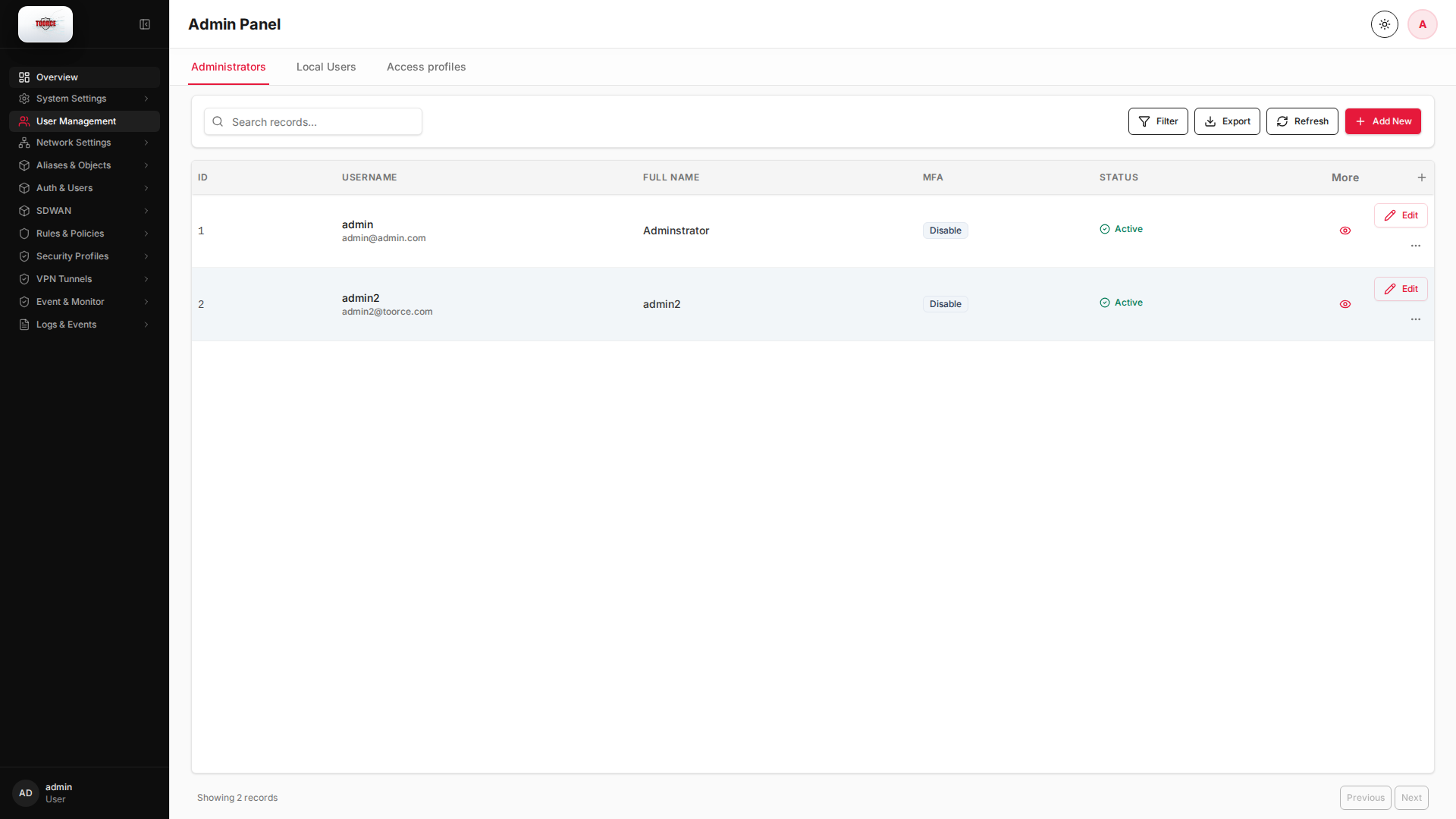
List view
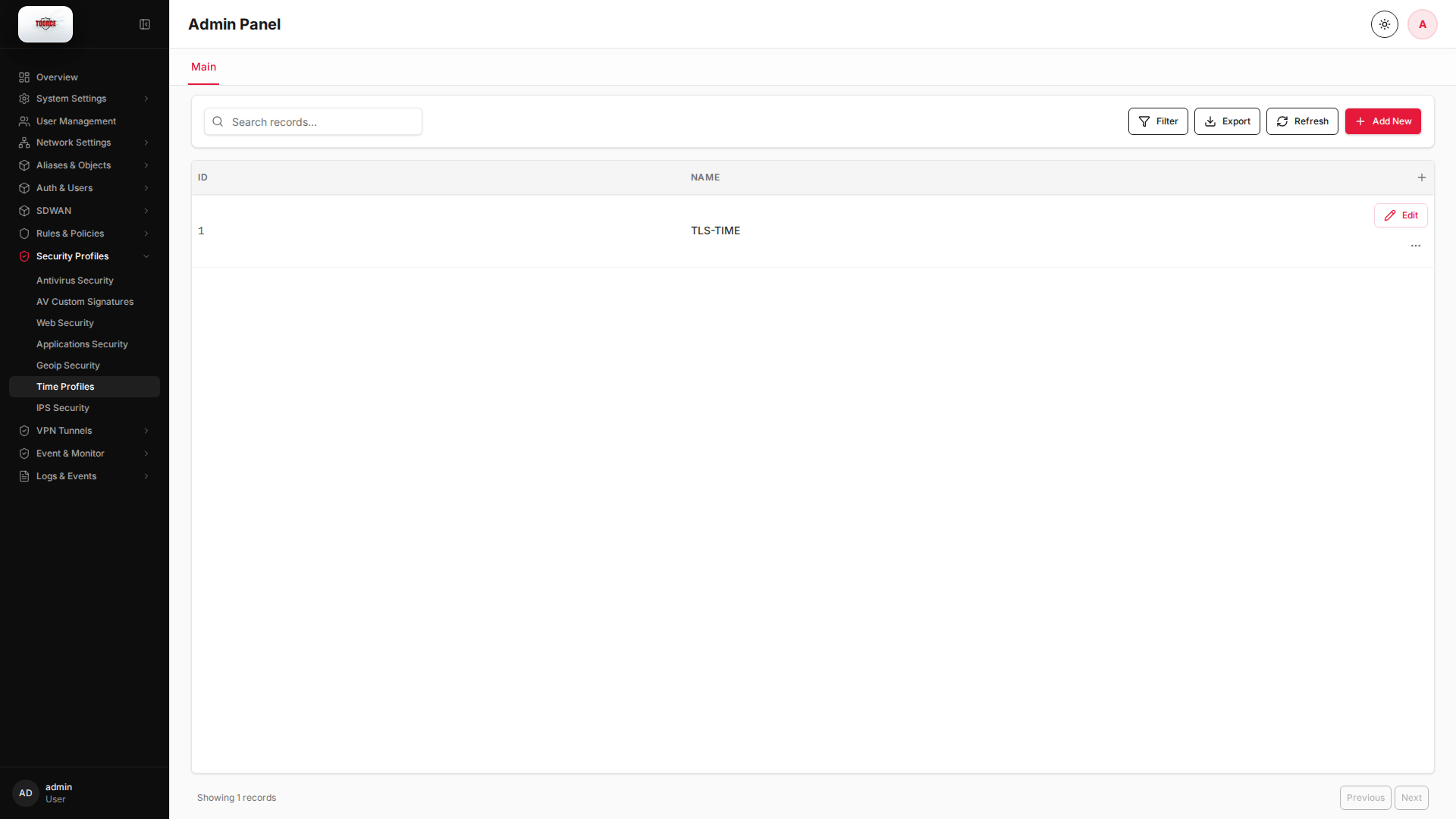
Add form
Empty form after clicking + Add New:
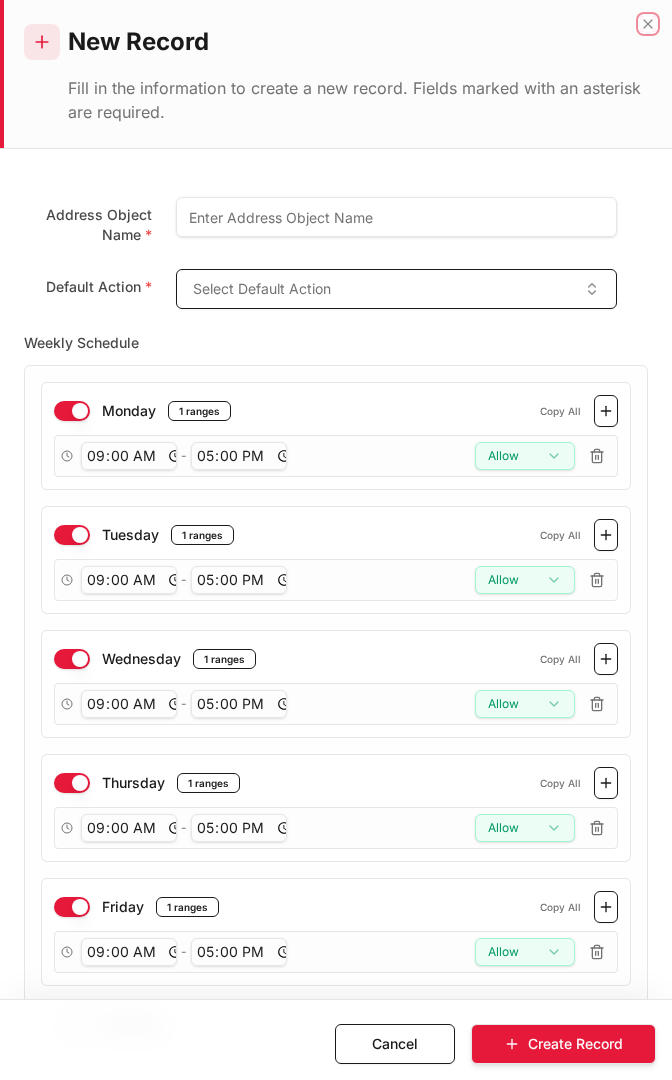
Same form filled with example data (do not save in production):
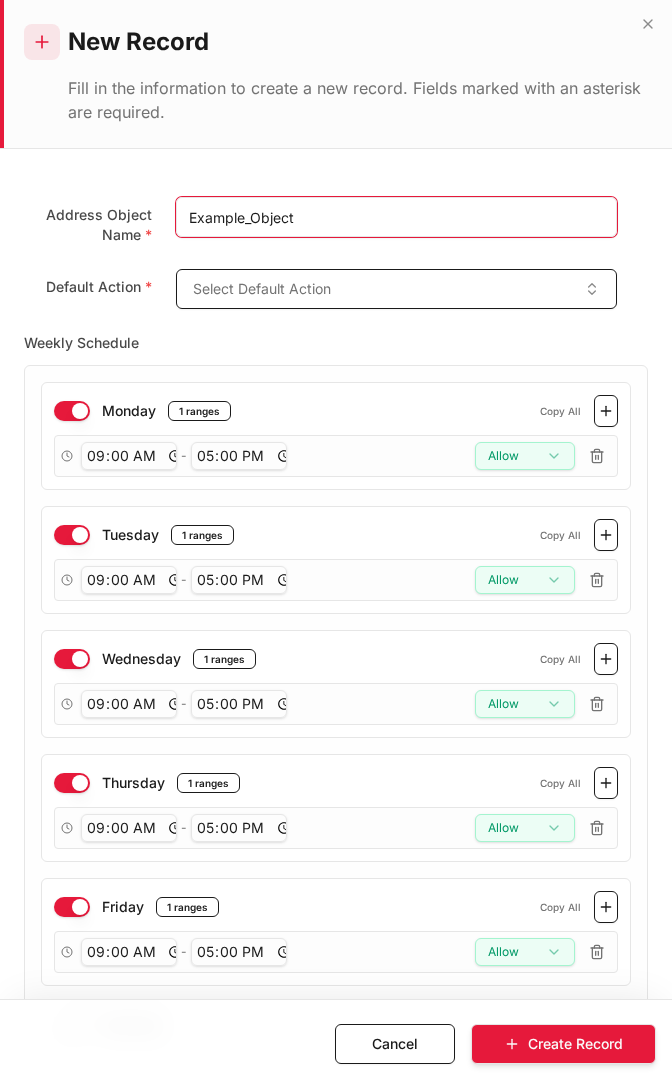
Edit form
Existing record opened with Edit:
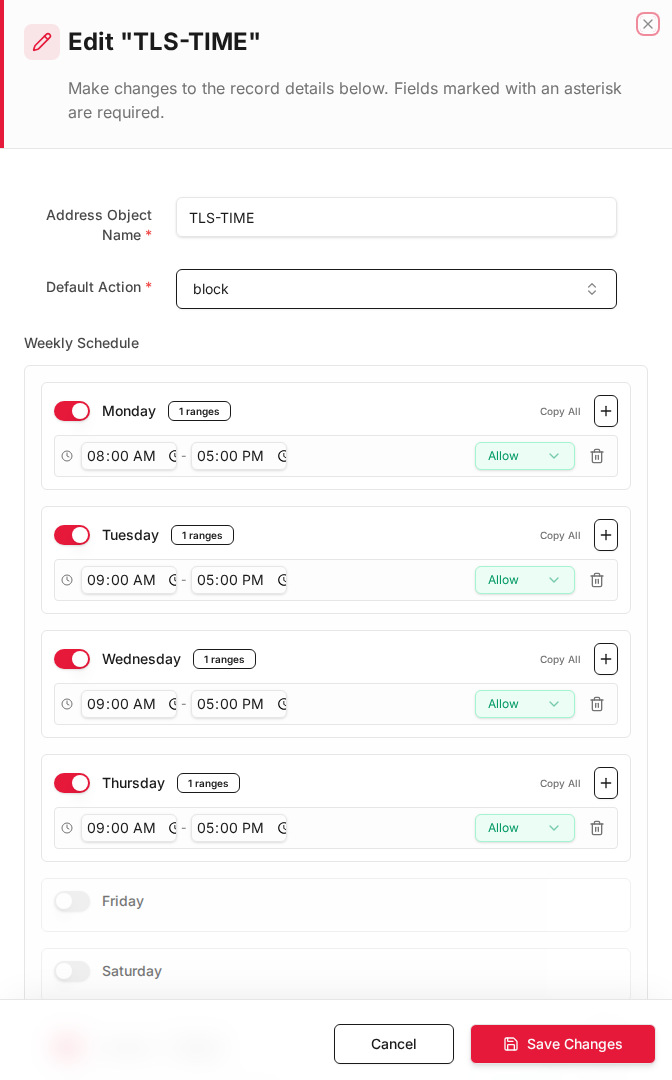
Form fields explained
Dialog title: New Record — Time Profile
| Field | Required | Description | Example value |
|---|---|---|---|
| Profile Name | Yes | Schedule name referenced in rules | Business_Hours |
| Weekly Schedule | Yes | Click/drag grid to select active hours per day | Mon–Fri 08:00–18:00 |
Technical background
Time-based policy
Time profiles (schedules) restrict when a policy is active. This implements temporal access control — a security concept used to limit risk exposure to business hours when monitoring staff are available.
Use cases
| Scenario | Schedule |
|---|---|
| Block social media during work | Mon–Fri 08:00–18:00 |
| Allow maintenance window | Sunday 02:00–06:00 |
| Guest Wi-Fi hours | Daily 08:00–22:00 |
Standards reference
Time-based access aligns with NIST SP 800-53 control AC-2 (Account Management) and AC-3 (Access Enforcement) for temporal restrictions on privileged operations.
What is a time profile?
A time profile is a weekly schedule matrix. Each cell represents an hour of the day for each day of the week. Rules assigned a time profile only match traffic during scheduled hours.
How to create a time profile
- Go to Security Profiles → Time Profiles.
- Click Add New.
- Fill in:
| Field | Required | What to enter |
|---|---|---|
| Profile Name | Yes | e.g. Business_Hours, Weekend_Only |
| Profile Type | Yes | Recurring weekly schedule |
| Weekly Schedule | Yes | Click/drag on the grid to select active hours |
- Click Save.
Example: Business hours (Mon–Fri 08:00–18:00)
| Field | Value |
|---|---|
| Profile Name | Business_Hours |
| Monday–Friday | 08:00 – 18:00 (selected on grid) |
| Saturday–Sunday | No hours selected |
Example: 24/7 always on
| Field | Value |
|---|---|
| Profile Name | Always_On |
| All days | 00:00 – 24:00 (full grid selected) |
Where time profiles are used
| Location | Field name | Effect |
|---|---|---|
| Inline Rules | Time Profile | Rule only matches during scheduled hours |
| Web Security | Time profile | Web filtering active only on schedule |
| Applications Security | Time profile | App control active only on schedule |
| IPS Security | Time profile | IPS inspection active only on schedule |
Example workflow
1. Create time profile "Business_Hours"
2. Create inline rule "Block_Social_Media"
   → Time Profile: Business_Hours
   → Action: Deny
   → Application Control: Social Media
3. Social media is blocked only during business hours
Editing and deleting
- To edit: click Edit on the profile row, modify the weekly grid, click Save.
- To delete: ensure no rules reference this profile. Check Inline Rules and security profiles first.
Note: Before you delete a schedule that's in use, either delete the rule that uses it or apply a different schedule to the rule.
Related topics
Reference: Sophos Firewall — Schedule